
Introduction
The new Unique Selling Points feature allows hotels to create and manage up to three key selling points with a custom title, available in all active languages. This functionality is designed to enhance the booking experience by showcasing key hotel benefits at crucial decision-making moments.
What are Unique Selling Points?
Unique Selling Points (USPs) are distinctive features, services, or benefits that set a hotel apart from its competitors. They represent the compelling reasons why guests should choose one property over another, highlighting what makes the hotel special and memorable.
Well-crafted USPs help:
- Differentiate the property from its competitors
- Engage prospective guests by showcasing key benefits.
Why USPs Matter?
In today’s hospitality market there is strong competition and on platforms such as Booking.com, Expedia, or Airbnb, travellers often compare many hotels in just a few minutes.
Hotels need to differentiate themselves effectively to capture potential guests' attention. A clear USP helps a hotel stand out quickly and influence the guest’s decision.
USPs serve as powerful marketing tools that:
- Increase conversion rates by clearly communicating value propositions
- Build brand identity and positioning in the market
- Improve direct booking rates by showcasing unique value
- Competitive advantage: Differentiation from other properties in the area
A strong USP should be:
- Clear
- Relevant to guests
- Different from competitors
Best Practices for Effective USPs
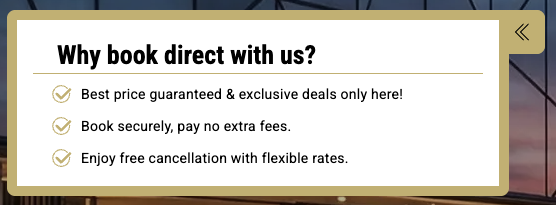
A guest discovers the hotel on Booking.com, but then visits the hotel’s website and sees:
-
“Free breakfast & late check-out when booking direct.”
Result: the guest chooses to book directly with the hotel.
Some other examples:
- Gourmet breakfast made by local chefs
- Free parking in the city centre
- Spa access included for all guests
- Rooms with private terraces
- Sustainable hotel with zero single-use plastic
- Pet-friendly hotel with dog-sitting services
- Benefits of booking directly:
-
- Best price guarantee
- Free room upgrade (subject to availability)
- Complimentary late check-out
- Welcome drink on arrival
Booking Platform Display
USPs are displayed in two strategically chosen locations on the Booking Platform. Both placements were selected precisely because they target high-intent moments in the booking journey.
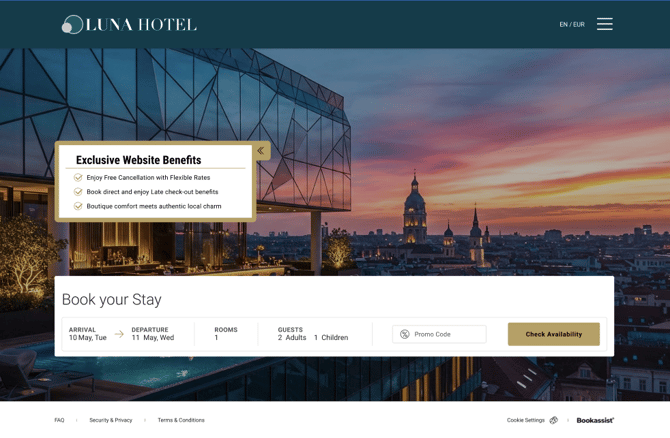
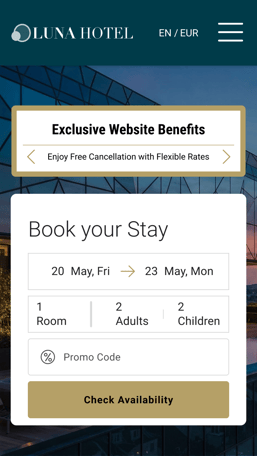
- Select Dates Page: Displayed prominently over the background image.
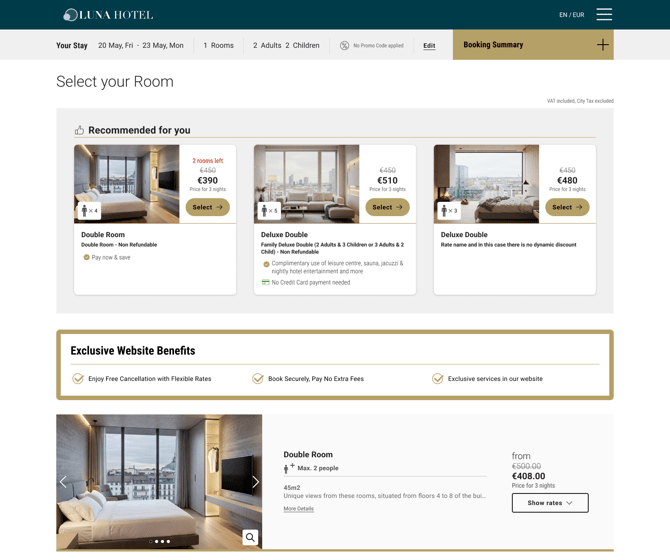
- Select Rooms Page: Positioned just below the Rate Recommender.
‘Select Dates’ page
This page is available for hotels with a ‘Book Now’ button on their website or a deep link pointing to this page.
The Select Dates page is the very first screen a guest sees when they enter the Booking Platform. The guest has already chosen to explore booking — they have clicked through from the hotel website or a campaign.
At this stage they have not yet looked at prices, so they are not in ‘comparison mode’ yet. This is the ideal moment to establish the benefits and differentiations from competitors before they even start the booking process.
Desktop view:
Mobile view:
‘Select Rooms’ page
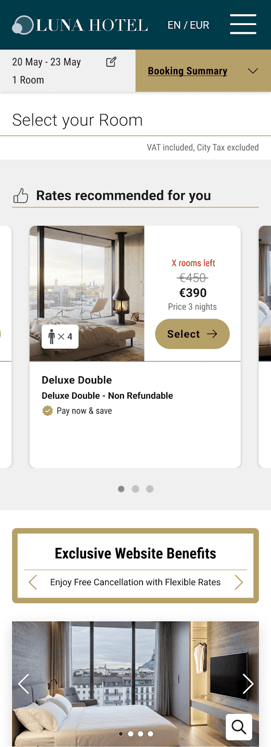
USPs appear just below the Rate Recommender (or below "Select your Room" if no Rate Recommender exists). This ensures guests see the hotel's unique benefits while actively comparing room options—the exact moment when booking decisions are made.
Desktop view:
Mobile view:
Set Up in Booking Platform Extranet
USPs feature is only available in the Extranet.
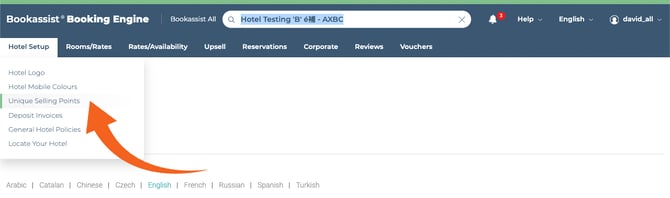
A new tab is displayed on the Menu, in the Hotel Setup tab called ‘Unique Selling Points’:
|
|
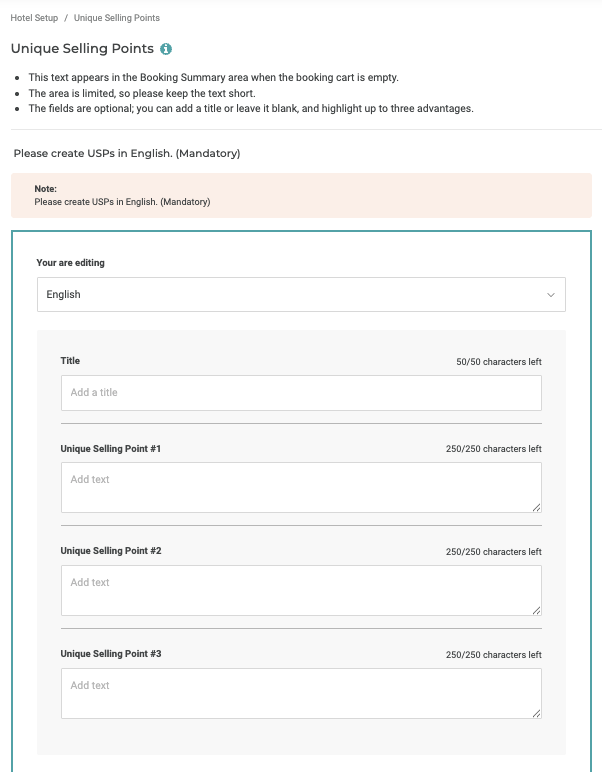
This tab will take you to the new USP page where you will be able to create a unique title for all the USPs and up to 3 USPs in all the available languages your hotel has in the Booking Platform.
|
|
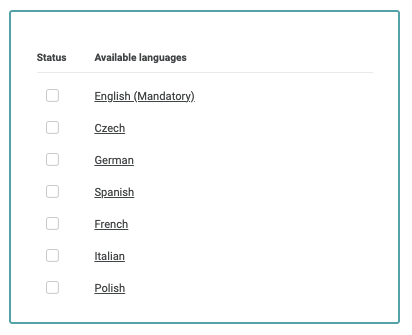
All active languages on Booking Platform will be indicated on the right hand side, being English mandatory.
|
|
Step 1: Add Content in your chosen language
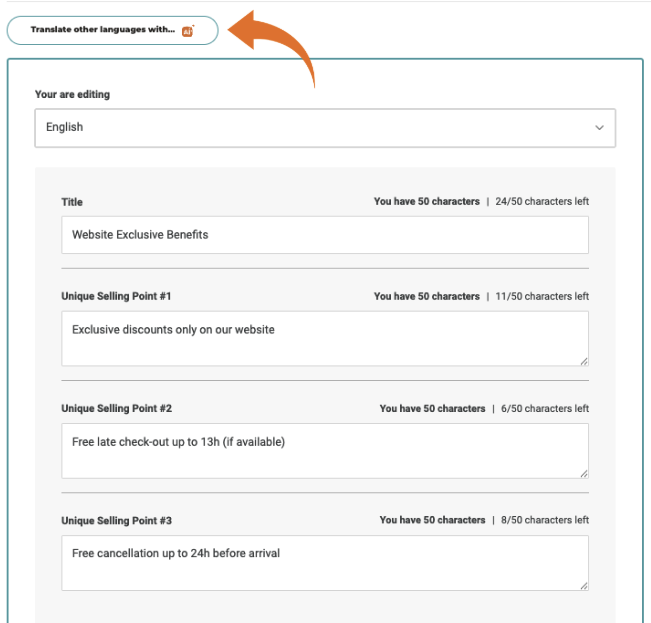
Select the base language from the 'You are editing' dropdown on the left panel.
In order to start, you must choose your preferred base language where all the rest of available languages should be translated from, and start adding a title and up to 3 USP.
Please note: There's a limit of maximum 50 characters in each language.
For example:
Title: 'Exclusive Website Benefits' or 'Why Book Direct With Us?'
Unique Selling Point #1, #2, and #3:
- Cheapest rates available when you book direct
- Exclusive discounts only on our website
- Free breakfast for our direct customers only
- Welcome drink
- Private parking
- Free late check-out (upon availability)
Step 2: Translate in all the rest of languages
Use AI Translation (Time-Saver)
For the first time, we are introducing AI-powered translation within the Extranet!! Allowing you to expand your messaging quickly and efficiently across markets, while significantly reducing manual effort.
Once you have saved the USPs content in at least one language, a 'Translate other languages with AI' button becomes available at the top of the USP page. This uses Google Gemini to generate translations automatically.
The workflow is designed to be fast but safe — translations require human approval before they are published.
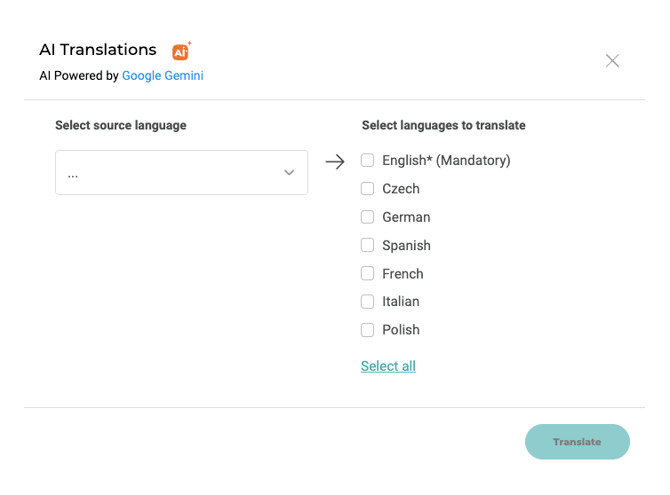
Select the ‘source language’ (only languages with saved content are selectable) and the languages to translate. Languages can be selected one by one or all at the same time. Click on ‘Translate’.
Step 3: Review and approve the rest of translated languages
Once the translation is complete, each language must be reviewed and approved. The system will show the status of each language and will let you know the type of review that is needed.
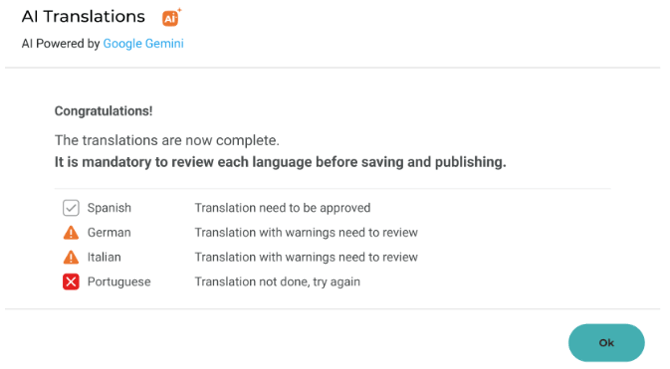
- Each language must be approved individually before the ‘Save’ button becomes available.
- If a language already has manual content, the system will ask if you wish to overwrite it.
- The wording can also be changed manually at any time.
FAQs
'I can't find USPs in the Extranet': Navigate to Hotel Setup → Unique Selling Points. If the tab is not visible, confirm with your Support Team that your hotel is using the New Booking Platform.
'My USPs aren't showing on the site': First check the language: USPs for untranslated languages are not shown.
'The AI translation looks wrong for [language]': You can always manually edit any AI-generated text by selecting that language in the 'You are editing' dropdown, correcting it, and saving again.
'Can I have more than 3 USPs?' No. The maximum is one title and three USPs.
'The Save button is greyed out': All languages that have pending AI translations must be individually approved before saving. Check in the right panel which languages have an outlined tick status and approve them.
Can we have different USPs depending on the language?: Yes, each USP can be manually managed or through the AI, making it possible to have different USPs in each language.