
At Bookassist, keeping your account and your guests' data secure is always a priority. As part of our ongoing investment in platform security, we've introduced an additional verification step for Extranet logins: Multi-Factor Authentication (MFA).
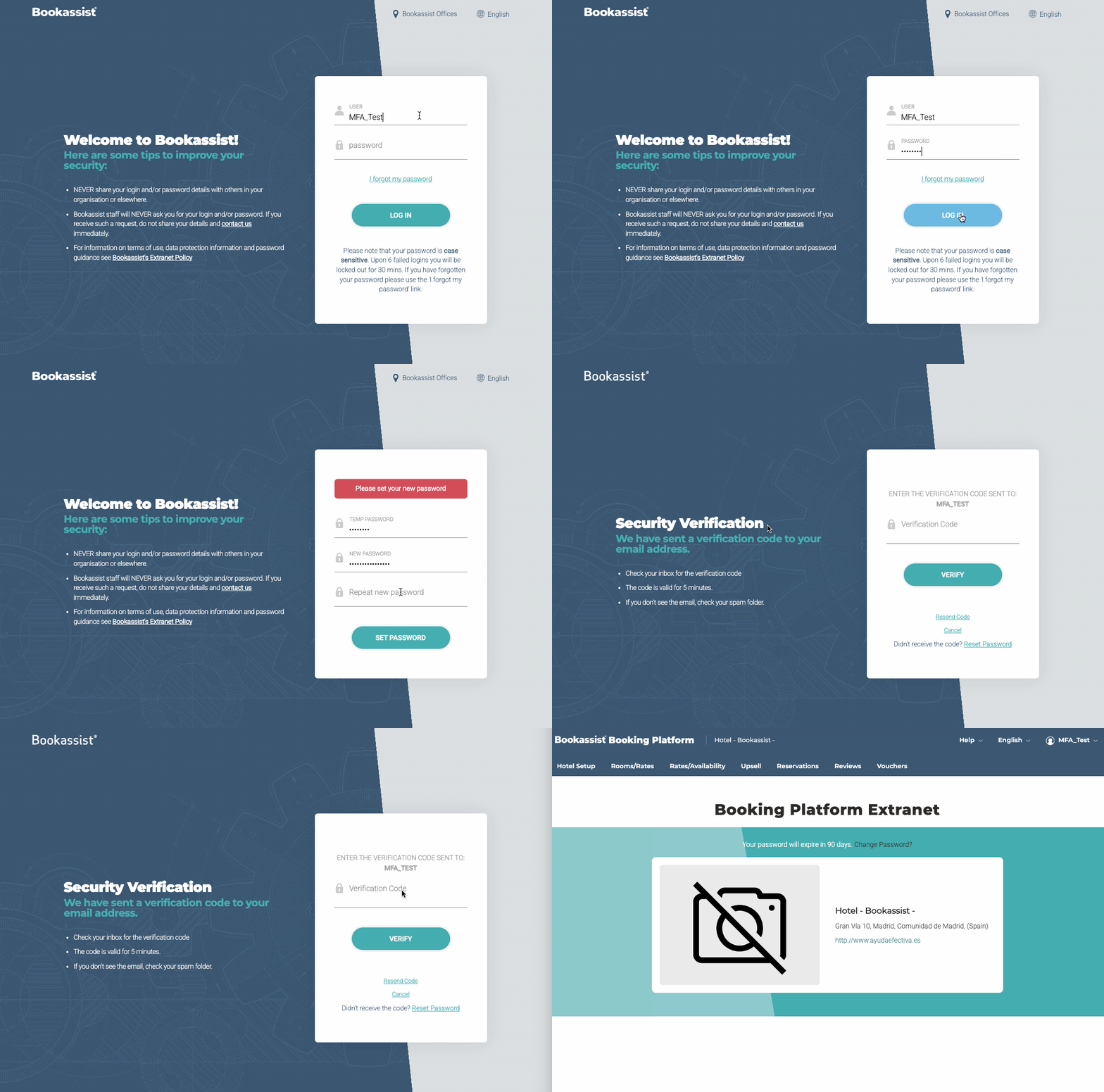
What is Multi-Factor Authentication?
Multi-Factor Authentication (MFA) is a security method that requires you to confirm your identity in two different ways before you can log in, rather than relying on a password alone.
With MFA enabled, logging into the Bookassist Extranet involves:
- Something you know — your username and password, as usual.
- Something you have — a one-time verification code sent to the email address assigned to your username.
Only someone with access to both your password and your inbox can complete a login, which makes it far harder for anyone else to get into your account, even if your password were ever guessed, stolen, or leaked.
Tip: use a unique, valid email address for each user. Each username should have its own individual, correctly working email address assigned to it, rather than sharing one inbox across several members of staff. This ensures verification codes always reach the right person promptly, avoids confusion over who should be checking for a code, and keeps each person's access properly tied to them — an important part of using MFA correctly and securely.
This is essential, not just good practice. If the email address assigned to a username is invalid, mistyped, or no longer working, the verification code simply cannot be delivered — which means that user will be unable to complete login at all. Please make sure every user's email address is correct and active before their next password renewal, to avoid being locked out of the Extranet.
Why is Bookassist introducing MFA?
At Bookassist, protecting your account and information is a priority. We are always looking for ways to make the Bookassist extranet more secure. Multi-factor authentication (MFA) is the latest step in that ongoing effort. It adds a simple extra layer of protection to the security measures already in place, helping to ensure that only authorised users can access the extranet.
This work also supports our commitment to PCI DSS compliance — the security standard that governs how payment card data must be protected — helping us keep guest and hotel data secure to the highest industry standards, today and as new best practices emerge.
The introduction of MFA is part of our ongoing commitment to maintaining a secure and reliable extranet experience for our customers.
A few things worth knowing about how we've approached this:
- No apps to install. Verification codes are sent by email, so there's nothing to download or set up on your phone or computer.
- No sudden disruption. You won't be logged out or blocked without warning. MFA is switched on for your account automatically, the next time you're prompted to renew your password.
- Minimal day-to-day impact. Once enrolled, the only change to your routine is entering a short code from your email each time you log in.
How MFA works for you
Every login follows the same simple pattern:
- Enter your username and password as normal.
- Wait for an email containing your one-time verification code, sent to the email address assigned to your username.
- Enter the code on the verification screen to complete your login.
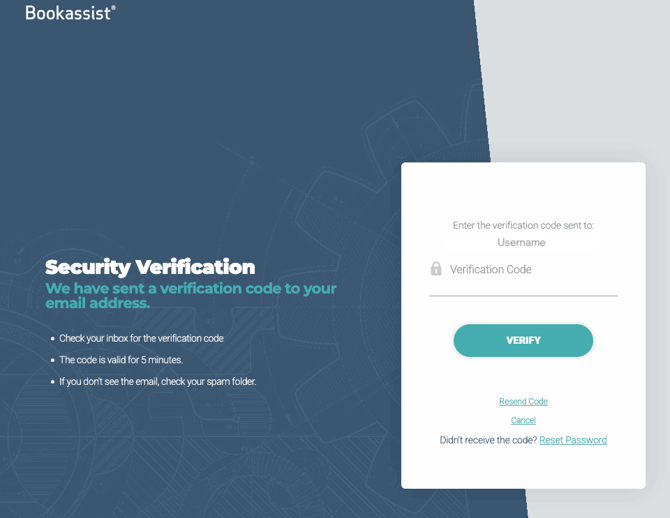
The code is:
- Single-use — each code can only be used once.
- Time-limited — it expires after 5 minutes, so it's best to check your email as soon as you're prompted.
- Easy to request again — if it hasn't arrived after 5 minutes, simply select Resend code on the verification screen.
⚠️ If you do not receive the code straight away, you should try refreshing your inbox and, as a precaution, check your ‘spam’ folder as well before requesting a new code.
Trusted Browser
Once a you have successfully entered your MFA code, that browser is trusted for 30 days.
During that time you log in with your username and password and go straight into BEX — no code, no waiting for an email. They verify again the first time they use a new browser or device, and once every 30 days.
One IMPORTANT exception: If you have access to credit card details
Trusted Browser applies only to users who do NOT have access to credit card details.
Users with card access will continue to be asked for a verification code every time they log in, with no 30-day period.
This is not something we can choose: the card security rules we work to require that anyone who can reach card data is asked for their second factor on every single login.
When a code is still requested
- The first time on a new browser or device
- In a private or incognito window, every time
- After clearing browsing data
- Every 30 days, on each browser
- After a password change or reset
- After a change to role, permissions, account status or email address
Common issues and how to resolve them
My email address is invalid or no longer works:
If the email address assigned to your username is incorrect, mistyped, or inactive for any reason, the verification code cannot be delivered — which means you'll be unable to complete login, as there's no way to move past the verification step without it. If you suspect this might be the case (for example, you were never prompted for a code, or you know your email address on file is outdated), contact Bookassist Support team straight away so it can be corrected. It's worth checking that every user's email address is valid before their next password renewal, to avoid being locked out unexpectedly.
I haven't received my verification code
Give it a few minutes and refresh your inbox — the first email can sometimes take a little longer to arrive than usual. Be sure to check your spam or junk folder too, as automated emails are occasionally filtered there by mistake.
-
Email Subject: Bookassist Security Verification Code
-
From: no-reply@bookassist.com
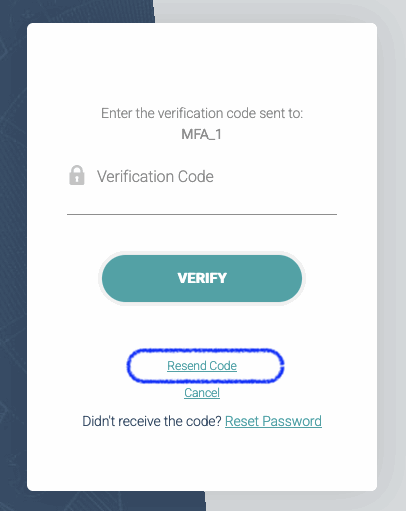
If it still hasn't turned up, use the Resend code option on the verification screen to trigger a new one.
My code says it's expired
Codes are only valid for 5 minutes as a security measure. If yours has expired, simply request a new one and try again.
I entered the code but it's not being accepted
Double-check you've copied the whole code, with no extra spaces or missing digits. If you enter an incorrect code multiple times, you may be asked to wait briefly before trying again — this is a standard safeguard against repeated failed attempts.
I'm not receiving emails at all
Verification codes are always sent to the email address assigned to your username. If you've changed email addresses recently, share an inbox with other users, or you're unsure which address is on file, please contact your hotel's Bookassist administrator or our Support team so it can be checked and updated. As a reminder, each username should have its own unique, individually-checked email address for the best and most secure experience.
My account has been temporarily locked
This is separate from MFA itself: after 6 failed login attempts with an incorrect password, the Extranet locks the account for 30 minutes as a standard security precaution. Simply wait for the lock to lift, or use I forgot my password to reset it.
I wasn't expecting this extra step
If MFA appears unexpectedly during login, it simply means your account has reached its scheduled password renewal. This is expected behaviour and not a sign that anything is wrong with your account.
Frequently asked questions (FAQs)
Do I need to install an app or a physical security key? No. Verification is done entirely by email — no additional software or hardware is required as of yet.
Is this a one-off setup, or will I need to do this every time? MFA enrolment happens once, during your next password renewal. After that, you'll be asked to enter a one-time code each time you log in, as an ongoing part of the sign-in process.
Can I opt out of MFA? No. MFA is a core part of how we protect Extranet accounts and guest data, so it isn't something individual users can disable. If you have concerns about how it affects your team's workflow, please get in touch with our Support team.
What if I no longer have access to the email assigned to my username? Contact your hotel's Bookassist administrator or our Support team as soon as possible so the email address on your account can be corrected.
Can two users share the same email address? This isn't recommended. For MFA to work smoothly and securely, each username should have its own unique email address, checked only by that person. Sharing an inbox between users can lead to delays receiving codes, confusion over who should act on them, and reduces the security benefit that MFA is designed to provide.
Two of us share the front-desk computer. Does this mean my colleague can get into my account? No. The 30 days belong to the person, not to the computer. Your colleague still logs in with their own username and password, and they will be asked for their own code. Nothing about your account is opened up by them using the same machine.
I use BEX at work and at home. Do I have to verify both? Yes, once on each — and then each one is remembered separately for its own 30 days. The same applies to a phone or tablet.
Why does my colleague get remembered and I don't? The most likely reason is that they have card access on their account and you don't, or the other way round. Anyone who can see credit card details is asked for a code every time.
Can I ask you to remember my browser for longer than 30 days? No, and it's the same 30 days for everyone. It's the balance we've settled on between convenience and keeping accounts properly protected.
What if someone steals my laptop? Let us know straight away and change your password. Changing your password cancels every browser we were remembering for you, on every machine — so whoever has the laptop would need your new password and a fresh code to get anywhere.
Need more help?
If you run into any issues that aren't covered here, or if anything about the process is unclear, our Support team is on hand to help.