
Personalisation series reference: Phase 1: Plan → Phase 2: Build & Apply → Phase 3: Test & Validate → Phase 4: Publish & Monitor
Single-page summary of all four phases: How to Use Targeted Personalisation
Every recipe follows the same steps. Create the audience and build its rules. Open the widget item, add the replacement and save it, then choose its audience straight away. Then test, publish and check the live site.
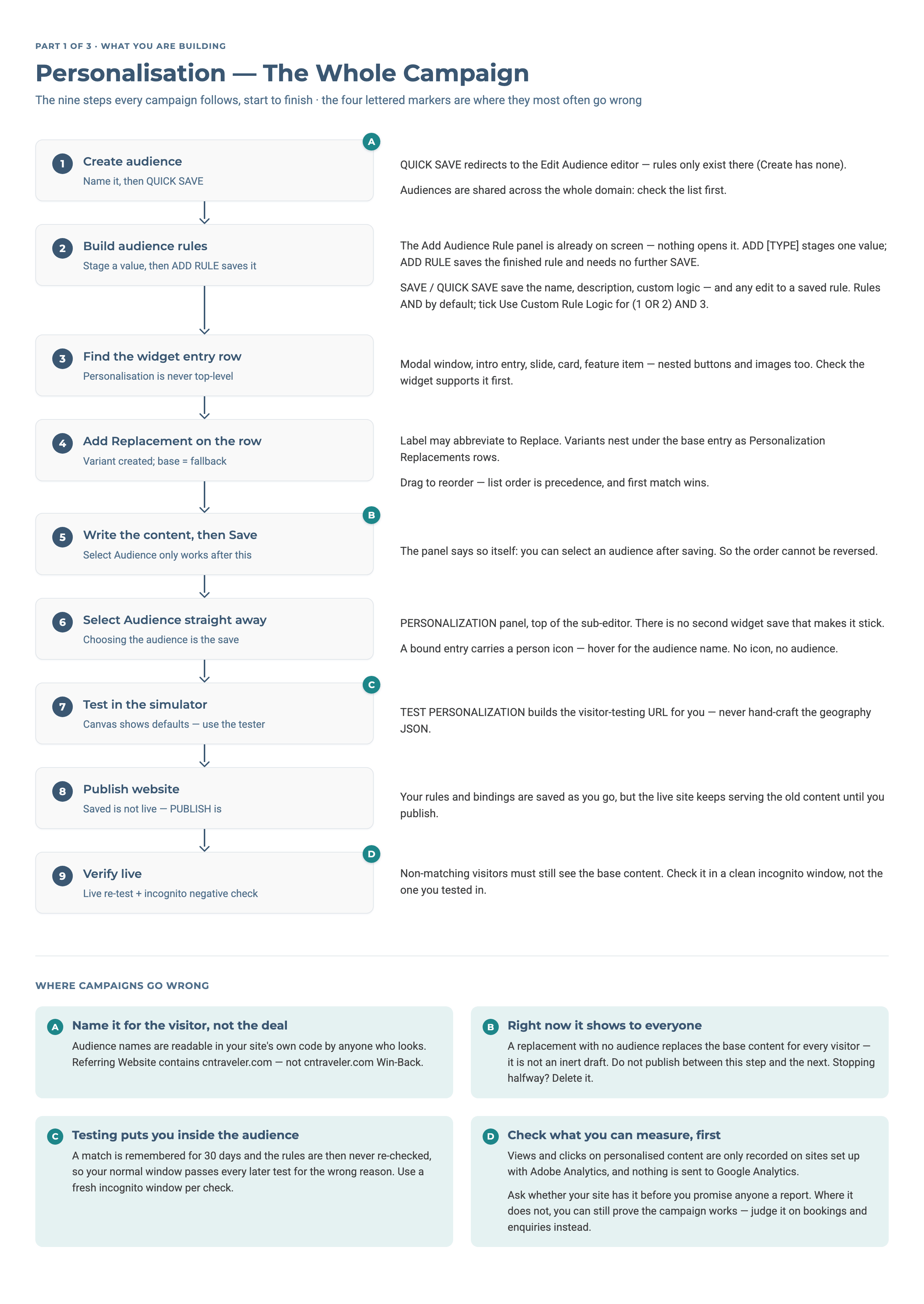
Steps 1 to 3 are shown field by field in Phase 2: Build & Apply.
All six recipes need a new audience that you create yourself.
Platform path: Dashboard → Website CMS → [Domain] → Website → Personalization
Two controls, in two places. Personalisation is never on a widget's main editor. It is on the items inside the widget, and every widget that can be personalised has both controls.
- Add Replacement is on each item's row in the widget's list: an intro entry, slide, card, feature item or modal window, and the buttons inside them. On Hero Carousel the label is sometimes shortened to Replace. It makes a copy of the item for one audience. The copy sits under the original as a Personalization Replacements row, and everyone else still sees the original.
- Select Audience is inside each item's own editor, in the PERSONALIZATION panel. It ties the open item to an audience. A new modal window must be saved once before the link works.
Use Add Replacement when everyone else must still see content. Use Select Audience on an original item only for content that one audience alone should see, such as a pop-up for visitors from a partner. The full steps are in Phase 2: Build & Apply.
Recipe 1 — Partner Referral Win-Backs
Goal: A visitor who arrives from a publication or partner site, such as a travel magazine feature or a blog post, sees a private direct-booking offer on the first page they open.
Audience rule:
- Audience name
- Referral Win-Backs (for example, CN Traveler Readers)
- Rule type
- Referring Website
- Operator
- contains
- Values
-
cntraveler.com,irelands-blue-book.ie(add each separately)
Recommended widget: Modal Popup 1.0 (Premium)
The pop-up can open after a short time delay, so the visitor sees the offer soon after they arrive. Choose the audience on the modal window itself, so that it opens only for visitors from the partner.
Link the pop-up's button to your reservations page, with a price group added so the offer is shown first:
?price_group=XXXXXReplace XXXXX with the price group number of the discounted rate. How to add a booking link explains how these links are written.
Good to know: once a visitor matches the audience, they stay in it for 30 days, on every page and on return visits. So the pop-up can go on whichever page suits the offer, not only the page they arrive on. If the publication or advertiser can give you a tracked link, such as ?WT.mc_id=cntraveler, use a Campaign or URL Parameter rule. It is more exact, because it matches that one link and not every visitor from the site.
Recipe 2 — Event / Festival Referral
Goal: A visitor who arrives from an event partner's website sees the festival package as the first offer on your homepage.
Audience rule:
- Audience name
- Galway Races Visitors
- Rule type
- Referring Website
- Operator
- contains
- Value
-
galwayraces.com
Recommended widget: Single CTA Carousel with Horizontal Content 1.0
Work on the first slide of this carousel on your homepage. Click Add Replacement on the slide's row, then choose the audience with Select Audience in the replacement's Personalization panel. Everyone else still sees the original slide. Give the replacement the festival package's image, headline and button, and link it straight to the offer's page.
Live demo — Single CTA Carousel
Create a separate audience and replacement for each event partner. A visitor can match more than one, so decide in your plan which offer should win. If several event replacements sit on the same slide, their order in the slide's Personalization Replacements list decides it: the first one from the top that matches is shown. Drag the offer you most want shown to the top, and test before you publish.
Tip: If the partner's link carries UTM tags, a URL Parameter rule is more exact than Referring Website. Set its key to the tag the partner uses, such as utm_source. A Campaign rule does not work here, because it reads only a WT.mc_id code and never a UTM tag.
Recipe 3 — Group Website: Show Relevant Hotel First on Return Visit
Goal: On a group website, a visitor who has looked at one hotel's page sees that hotel first when they return to the group homepage.
Audience rule:
- Audience name
- Visited [Hotel Name] Page
- Rule type
- Visited Pages
- Operator
- equals
- Value
- [the hotel's page, chosen from your site's list of pages]
Create one audience per hotel.
Build each audience from the website its page belongs to. The Visited Pages list offers only the pages of the website you are working in. On a group where each hotel has its own website, switch to that hotel's website before you add its rule. Otherwise its pages are not in the list. Once the audience exists, your other websites can use it too.
Recommended widget: CTA Carousel 1.0
Use each audience on the card for its hotel, so that the hotel is first in the carousel when that visitor returns.
Use CTA Carousel 1.0, not CTA Grid Carousel 1.0 (Premium). The names are similar, but the Grid Carousel cannot be personalised. You would build the audiences and then have nowhere to use them. Mixed Media CTA Carousel 1.0 (Premium) is the other carousel that works here. Link each card to the hotel's own booking page, and add a price group if a direct-rate package applies.
Priority: In your plan, rank campaign audiences above these hotel-page audiences. A visitor who matches both then sees the campaign content.
Size of group: This works well for groups of up to about five hotels. Beyond that, the work of keeping one audience per hotel grows quickly.
Recipe 4 — Country-Based Targeting: US Visitors
Goal: Visitors browsing from the United States see content chosen for that market, such as different images, wording or US dollar rates.
Audience rule:
- Audience name
- US Visitors
- Rule type
- Country
- Operator
- equals
- Value
- United States
Recommended widget: Introduction 1.0
The Introduction widget is built for personalisation. It suits changing the main heading and opening text on your most visited pages. Use the audience on the Introduction widgets of your main inner pages as well as the homepage, so the message stays the same throughout the visit.
For any "Book Now" button aimed at this audience, add the market's price group to its link:
?price_group=[ID]Add further parameters with & as needed.
Live demo — Introduction widget
Personalisation is not a redirect. Personalisation changes the content on a page, and the page address stays the same. The CMS Redirects tool sends one address to another for every visitor. It cannot choose by country or audience. If you want to send US visitors to a different address altogether, contact support, because that cannot be set up in the CMS.
Recipe 5 — Behavioural Upsell: Meeting Rooms / MICE Visitors
Goal: A visitor who has looked at your meetings or conference page sees conference content first on the homepage or rooms page.
Audience rule:
- Audience name
- MICE Visitors
- Rule type
- Visited Pages
- Operator
- equals
- Value
- [your meetings or events page, chosen from your site's list of pages]
Recommended widgets: Hero Carousel 1.0 and Feature List 1.0, used together
Both work the same way. Click Add Replacement on the row of the slide or item, then Select Audience inside the replacement's editor. On Hero Carousel the label is sometimes shortened to Replace. Everyone else still sees the original content.
- Hero Carousel 1.0: add a replacement on the slide you want, choose the audience, and give the replacement an image of your conference space. Describe the image in the slide's Alt Text, which accessibility rules require.
- Feature List 1.0: add a replacement on the feature item you want and choose the same audience. Replace the usual amenities with conference details: room layouts (theatre, cabaret, boardroom) and links for enquiries and availability.
Live demo — Hero Carousel | Live demo — Feature List
The same approach works for any interest a visitor has shown. Visitors to your spa page can see wellness packages, and visitors to your restaurant page can see dining offers. Each one needs its own audience, with that page as the Visited Pages value.
Recipe 6 — Mobile-Exclusive Offers (Two-Method Approach)
Goal: Mobile visitors see an offer of their own, at the top of the homepage and in the CTA carousel, that desktop visitors never see.
This recipe uses two separate methods on the same page.
Method A — Audience Personalisation on a CTA Carousel card
Audience rule:
- Audience name
- Visitors on Mobile Devices
- Rule type
- Device Type
- Operator
- equals
- Value
- Mobile
Do not miss this click. After you select Mobile from the Device Type dropdown, click ADD DEVICE TYPE to put it into the rule. Selecting Mobile is not enough. Without that click, the rule shows "No Device Type values have been added" and the audience does not work.
Recommended widget: CTA Carousel 1.0
Click Add Replacement on the row of the card that will carry the mobile offer, then choose the audience on the replacement with Select Audience. The original card and all the other cards stay the same for everyone else.
Method B — CSS Class Visibility on a top-of-page widget
For a whole widget that should show on phones and tablets and never on desktop, use a visibility class in place of an audience.
Recommended widget: Single CTA with Image Carousel and Horizontal Content 1.0
In the Optional Class field at the bottom of the widget editor, enter visible-xs visible-sm. The widget is hidden on desktop and leaves no gap.
-
visible-xs - Shows on phones
-
visible-sm - Shows on tablets
-
hidden-xs - Hides on phones
-
hidden-sm - Hides on tablets
Which classes work on your site depends on its theme. The four above work on Luna's original build, Aurora, Interstellar, Gemini and Equinox. Supernova, Retrograde, Atlas, Neptune and Solstice use a different set. On those themes, d-lg-none shows a widget on phones and tablets and hides it on desktop. A class from the wrong set does nothing at all, so ask your account manager which theme your site uses before you enter either.
Which method to use: Use Method A, the audience, when one item inside a shared widget should be different on mobile. Use Method B, the class, when a separate widget should appear only on mobile. You can use both on the same page.
Audience Priority Reference
One visitor often matches more than one audience, so rank your audiences as you map them, with the most specific first. Each visitor then sees the content that suits them best:
- Campaign and referral audiences (Recipes 1 and 2): you know exactly why they came
- Behavioural audiences (Recipes 3, 5 and 6): they have shown an interest
- Geographic audiences (Recipe 4): the broadest group
This ranking is part of your plan. It is not a setting on the Audiences screen. The mapping chart in Personalisation Planning Templates has a Priority column for it. A widget item can hold several replacements, one for each audience, in its Personalization Replacements list, and you can drag them into any order. The first replacement from the top that matches the visitor is the one shown. Drag the replacements into your planned order, and test any overlaps before you publish.
→ Next: Phase 3: Test & Validate, which has a table for testing all six recipes before you publish.
Related: Phase 4: Publish & Monitor, to put a recipe live and see its results · Personalisation Planning Templates, for the audience chart and campaign worksheets.
Want help with your personalisation?
Our team can help you plan and carry out your personalisation goals — choosing the visitors worth treating differently, deciding what each of them should see, and building, testing and publishing the campaign with you.
Email support@bookassist.com and tell us what you want to achieve — more direct bookings from returning guests, a seasonal offer for one market, or anything else you have in mind.