
Every visitor who lands on your hotel website arrives with a distinct reason for their trip—a corporate conference, a family holiday, or a romantic weekend getaway. Targeted Personalisation lets your website automatically recognize those different motivations and adapt what each visitor sees. This turns your homepage from a generic booking page into a digital concierge that already knows what your guest came for.
Rather than showing a single broad message to everyone, you serve highly relevant imagery, tailored offers, and intent-driven calls to action to the right audience. That exact relevance is what drives digital engagement and direct bookings—visitors who see web content matching their immediate travel intent are far more likely to convert.
🔄 Part 1: The Personalisation Campaign Lifecycle
Deploying a personalisation campaign follows a structured lifecycle to ensure your live site configuration remains stable. The engine operates on a sandbox model: saving an entry only stages your draft updates inside a secure preview database, requiring an explicit publish action to push configurations live to production.
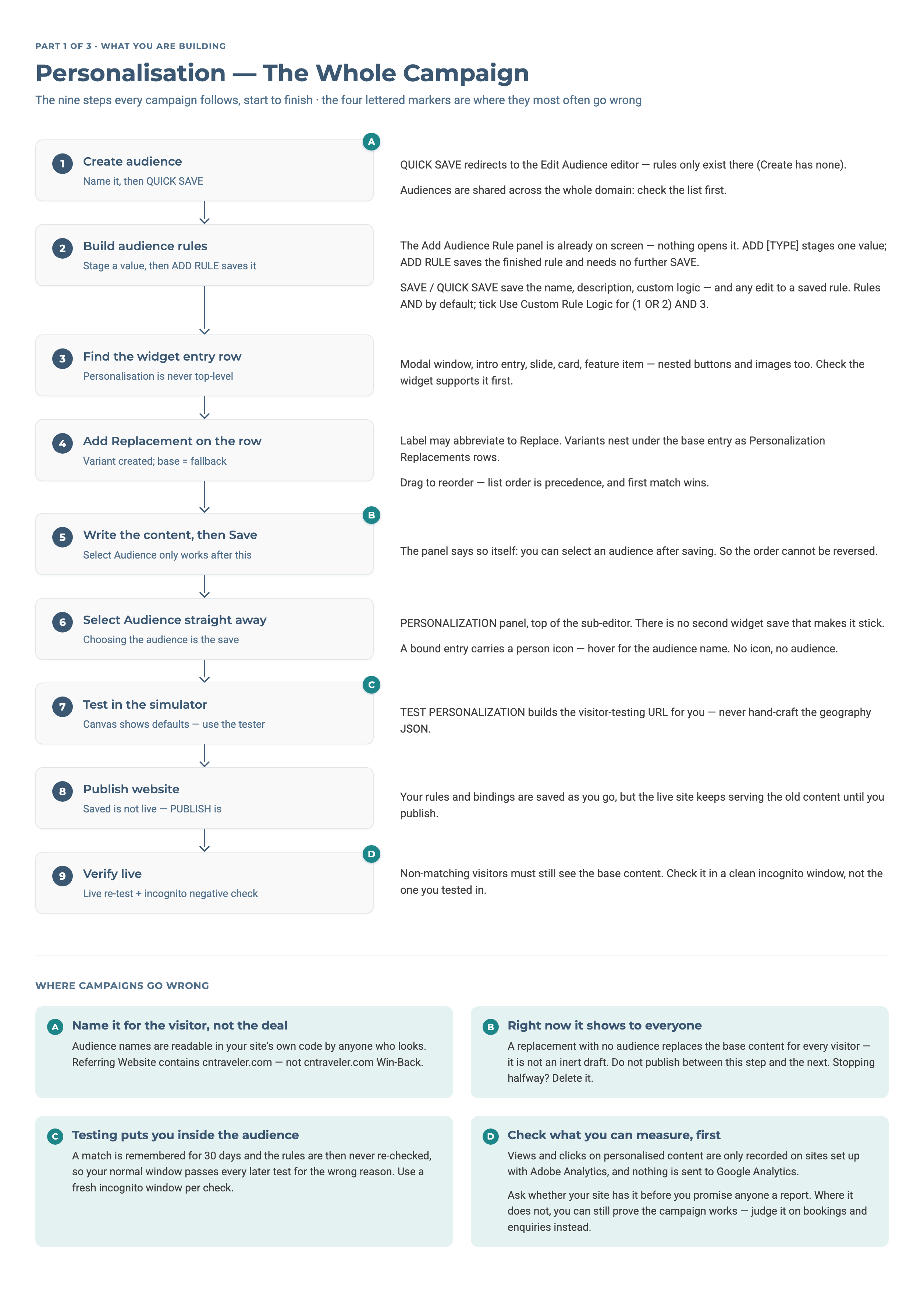
The personalisation framework relies on a simple three-part relationship:
| Component | Definition | Hotelier Practical Example |
| Audience |
A named visitor segment defined by matching real-time session parameters on page load. No personal data is stored. |
Mobile Users, Visitors from Booking.com, US-based Corporate Guests. |
| Replacement Content |
The alternative text, photography assets, or direct booking paths that dynamically overwrite the default layout. |
Swapping a generic family layout for a corporate boardroom description and RFP button. |
| Priority |
The hierarchical evaluation order that decides which rule wins if a guest qualifies for multiple segments at once. |
Active email campaign traffic or partner links outranking broad geographic location rules. |
🗺️ Part 2: Planning & Designing Audiences
Before clicking into the rule builder, map out who you want to target and rank them. When a visitor matches multiple audiences on the same content item, the replacement listed first (top of the list) wins — so decide your priority order now, most specific intent first, and you'll apply it later in the widget by dragging nested replacements into that order.
Strategy Blueprint: Target Audiences at a Glance
Use this matrix to map your commercial goals directly to the engine's rule logic.
| Priority | Audience Segment | Shared Attribute | Engine Rule Logic |
| 1 | New site visitors |
Visiting the website for the first time |
|
| 2 | At reservation system |
Have reached the booking engine |
|
| 3 | Social networks |
Arriving via social links |
|
| 4 | Mobile devices |
Browsing on a smartphone |
|
| 5 | International visitors |
Browsing from outside the home country |
|
| 6 | Campaign audiences |
Arriving via a tracked promo link |
|
| 7 | Return visitors |
Have visited the website before |
|
| 8 | Nearby mobile visitors |
On mobile, near the property |
|
| 9 | Repeat customers |
Returning AND previously reached Reservation System |
|
| 10 | Abandoned reservations |
Began a booking or RFP but didn't complete |
|
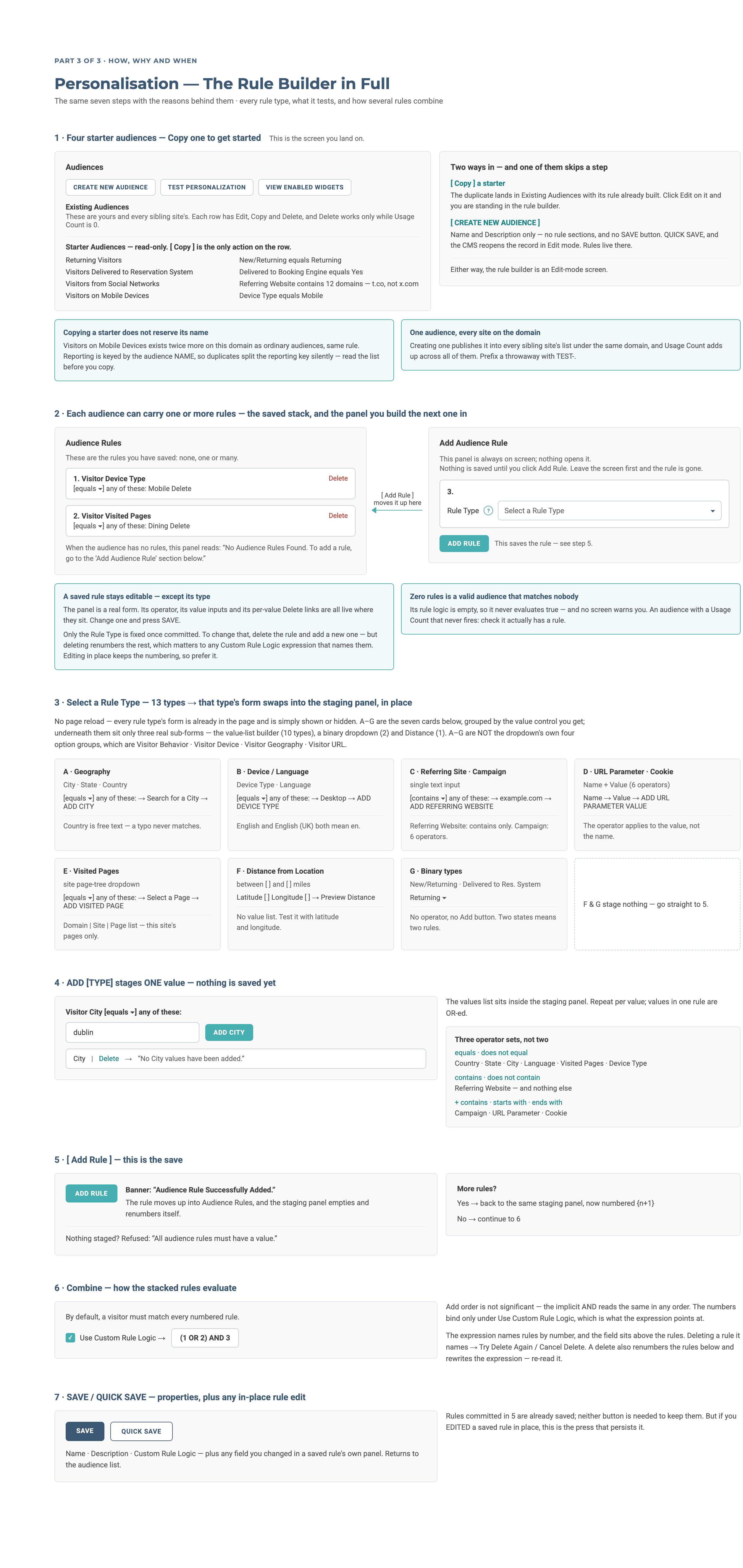
Building Your Audience in the CMS
Path: Dashboard ➔ Website CMS ➔ [Select Language] ➔ Website ➔ Personalization
- Click [ CREATE NEW AUDIENCE ].
- In the Audience Name field, type a clear operational label (e.g., OTA Win-Backs).
- Click [ QUICK SAVE ] to initialise the profile and reveal the rule engine workspace.
- Click ADD RULE to append a blank numbered configuration panel.
Action Matrix
The 13 distinct rule types behave differently in the interface. Use this reference to navigate the sub-forms:
| Input Category | Rule Types Covered | Interface Behaviour & Rules | Required Secondary Action |
| Multi-Value Lists |
• Geography (Country/State/City) • Device Type • Language Locale • Referring Website • Campaign / URL Parameter • Cookie Value |
Automatically swaps in text inputs or preset dropdown items in place based on your rule type selection. |
Mandatory: You must click the contextual |
| The Grid Anomaly | • Visited Pages |
Renders a unique 3-column tracking display structured cleanly by Domain | Site | Page. |
Mandatory: Select the target page from the site-tree dropdown and click |
| Geographic Distance | • Distance from Location |
Evaluates radius perimeters between |
None: Contains no inner value list. Configurations commit directly to the database when the main page is saved. |
| Binary Dropdowns |
• New/Returning Status • Delivered to Booking Engine |
Basic session status flags evaluating hardcoded browser states. |
None: Operates purely via a single dropdown selection. Contains no operators and no secondary add buttons. |
⚠️ Critical Wireframe Pitfall: Choosing a value from a dropdown menu panel (such as selecting Mobile under Device Type) does not automatically save it to your audience criteria. You must explicitly click the secondary [ ADD DEVICE TYPE ] (or [ ADD COUNTRY ]) button inside that field to stage the values into the active rule array. If omitted, the panel will save empty and your trigger will fail silently.
Combining Multiple Rules
An audience can hold more than one rule — click ADD RULE again to append another numbered panel.
Multiple rules combine with AND by default: the visitor must match all of them
(e.g. Device Type equals Mobile AND City equals [City]).
For OR or mixed logic, tick Use Custom Rule Logic and enter a boolean expression referencing the panel numbers, such as 1 AND (2 OR 3).
⚠️ If a rule number is referenced in your Custom Rule Logic expression, deleting that rule prompts [ Try Delete Again ] / [ Cancel Delete ] — remove the number from the expression first.
🖥️ Part 3: Canvas Implementation & Booking Engine Deep Links
Once your audience rules are locked down, apply alternative visual elements directly to the layout components. Personalisation alters components within an existing widget (like replacing a button link or slide text), rather than altering the outer widget shell itself.
Step-by-Step Implementation Flow
- In the visual Page Editor, hover over your target component and click Edit to open the item summary tree.
- Find the specific slide, grid card, or feature item row you want to target.
- Click Add Replacement on that item's row — this duplicates the item as a variant nested beneath it. The original stays as the fallback for all other visitors.
- Click Edit on the new replacement to open it, then in the Personalization section at the top of the panel, click Select Audience and choose your audience.
- Update your targeted text, images, and button paths inside the replacement.
- Click Save on the item panel, then Save on the master widget form to stage your changes.
⚠️ The Restrict Trap: Clicking Select Audience directly on your original base entry restricts that content to your targeted audience — everyone else sees nothing. Only do this deliberately, for content that should exist exclusively for one audience (like the referral-only popup in Case Study 1). For everything else, use Add Replacement so the base entry keeps serving all other visitors.
Streamlining Checkout with Booking Engine Deep Links
To secure maximum direct revenue, your call-to-action buttons should utilise query strings to bypass generic search calendars and pull up specific rates instantly. Add your custom strings directly inside a button’s Include URL Parameters field.
⛔ Critical Syntax Rule: Your parameter string must strictly begin with a question mark ?. If it begins with an ampersand (&), the engine will ignore your variables and load a blank calendar.
✓ CORRECT: ?price_group=12345&adults=2&nn=2
✗ INCORRECT: &price_group=12345&adults=2&nn=2
Use these parameters to construct high-conversion checkout paths:
?price_group=Restricts visible engine results to display only a specific promotional package, private tier, or discounted corporate ID code.?date_in=Pre-populates the exact arrival calendar date using the formatYYYY-MM-DD.&nn=Mandates the exact number of nights for the reservation. Always append this when using fixed dates to stabilise mobile calculations.&adults=Dictates the total adult occupant allocation for the engine search.&vgo=1(Variation Go) Forces the reservation engine to automatically expand nested room specifications and package rate descriptions on load.&kd=y(Keep Date) Instructs the server to lock your defined campaign calendar dates and prevents the engine from overwriting them with default dates.
🧪 Part 4: Testing, Visual Validation, and Going Live
The visual page canvas always displays default content blocks, so you must use the platform's simulator setup to audit your personalisation before launching it publicly.
Step 1: The Test Personalisation Simulator
This tool simulates specific visitor behaviours without requiring you to switch devices or testing hardware.
Path: Page Editor ➔ Website ➔ Personalization ➔ [ TEST PERSONALIZATION ]
- Set the testing environment dropdown to Preview Website to check your staged edits safely inside the sandbox.
- Select your target Page node where the personalised widget lives (typically Home).
- Populate only the specific configuration inputs that match your audience rules. Clear out and leave empty any fields that are not part of your audience logic, or the test will fail.
- Click the internal [ Test Personalization ] button at the base of the setup form. The simulator builds your testing framework automatically—never attempt to hand-craft geography query objects manually. Review the new tab to confirm your variations render perfectly.
Step 2: Validating Viewports with Mobile QR Codes
The Test Personalisation simulator does not render native responsive viewport shifts. To check device-targeted rules or audit your mobile text layouts, use the Page Editor toolbar:
- Inside the visual Page Editor, locate the responsive configuration bar at the top of the workspace.
- Switch the Size dropdown selection from Desktop to Mobile (360 × 640).
- Click the Get Mobile QR Code button located on the upper right workspace bar.
- Scan the barcode directly with your mobile device’s camera to evaluate row text layouts, image crops, and button sizes on a real screen.
Step 3: Executing the Live Publish Action
Once your sandbox preview testing passes, you are ready to compile your updates to production.
- Click Publish on the main toolbar.
- Review the Website History log. If a yellow indicator appears showing uncommitted team drafts, check the Confirmed clearance box and click Continue.
- Click [ PREVIEW WEBSITE ] as a final compiled site check.
- Click [ PUBLISH WEBSITE ] (or use PUBLISH MULTIPLE WEBSITES to push updates across group portfolios simultaneously).
- Clear CDN Caches: If your live site continues to display old fallback text due to local edge-routing memories, return to your Publish panel and click Purge Normal within the CDN control centre to force all nodes to pull fresh content.
💡 Part 5: Proven Hotelier Campaign Case Studies
Use these six proven strategies to deploy targeted campaigns across your property's directories.
Case Study 1: Partner Referral Win-Backs
- Operational Goal: Intercept incoming traffic clicking through from high-profile digital publications (e.g., Condé Nast Traveler) or OTAs with an exclusive direct-booking rate.
- Audience Rule Configuration: Set
Referring Website contains cntraveler.com. - Widget Execution Blueprint: Deploy a premium Modal Popup 1.0 at the top of your homepage. Set the window trigger to Time Delay with a desktop/mobile threshold of 3 or 5 seconds. Under the item settings, apply your audience, add warm welcoming copy, and inject an advanced deep link parameter (
?price_group=REF_WINBACK&vgo=1) directly into the action button.
Case Study 2: Event & Festival Traffic Optimization
- Operational Goal: Capturing high-intent race, concert, or festival traffic by automatically prioritising partner packages the second a user arrives from an event site.
- Audience Rule Configuration: Set
Referring Website contains galwayraces.com. - Widget Execution Blueprint: Hover over your homepage Single CTA Carousel with Horizontal Content 1.0. Select your very first slide slot, click Add Replacement, link your event audience, and update the layout with relevant festival imagery, package descriptions, and a direct checkout link.
Case Study 3: Multi-Property Group Site Affinity
- Operational Goal: Drastically lower reservation friction on multi-hotel portal sites by reorganising your hotel catalog layouts based on a returning user’s previous browsing history.
- Audience Rule Configuration: Build separate audiences for each sister property using
Visited Pages equals [Select Property Sub-Page]. - Widget Execution Blueprint: Edit your group homepage CTA Grid Carousel 1.0. Select the individual hotel card item, click Add Replacement, link the corresponding affinity audience, and rewrite the CTA text to a direct re-booking prompt ("Book Your Return to [Hotel Name]") pointing directly to that property's specific booking engine link.
Case Study 4: Country-Targeted Geolocation Focus
- Operational Goal: Serve tailored visual assets, custom text variables, and dedicated currencies to long-haul geographic markets without using hard, SEO-damaging URL redirects.
- Audience Rule Configuration: Set
Country equals United States. - Widget Execution Blueprint: Locate the high-visibility Introduction 1.0 editorial text components across your core landing pages (Home, Rooms, Dining). Open the nested intro repeater elements, add your US Visitor replacement variant, and append your US market rate parameters (
?price_group=US_OFFER&kd=y) to the primary links to bypass standard rates.
Case Study 5: MICE Behavioural Retargeting Upsells
- Operational Goal: Capture high-value corporate group leads by dynamically shifting your primary real estate to show conference setups and RFP links to users who previously browsed your event space pages.
- Audience Rule Configuration: Set
Visited Pages equals [Select Corporate Events/Meetings Page]. - Widget Execution Blueprint: Orchestrate this campaign across two separate widgets simultaneously. First, open your homepage Hero Carousel 1.0 and replace your primary slide with corporate boardroom imagery, delegate text, and an RFP group link. Second, open your Feature List 1.0 and swap standard leisure amenities for professional configurations detailing custom room layouts and theatre/boardroom delegate capacities.
Case Study 6: Mobile-Exclusive Flash Promotions
- Operational Goal: Capture last-minute mobile bookers by deploying highly visible mobile-only incentives across your layout.
- Audience Rule Configuration: Set
Device Type equals Mobile(ensure you click ADD DEVICE TYPE to pin the value). - Widget Execution Blueprint: Run this strategy using two synchronised methods. Use Method A to add an audience replacement inside your existing homepage CTA Carousel 1.0 cards to swap out a single tile for mobile rates. For completely unique layout structures, use Method B: place an independent layout component onto your canvas, open its settings panel, and type exactly
visible-xs visible-sminside the Optional Class field. This instantly hides the entire layout container from desktop viewports using native stylesheet display parameters.
⚠️ Those classes apply to Bootstrap 3 themes only (Luna, Aurora, Interstellar, Gemini, Equinox). On Bootstrap 5 themes (Supernova, Retrograde, Atlas, Neptune, Solstice)
use d-lg-none instead. If unsure which theme generation your site uses, ask your account manager.
📋 Pre-Publishing Strategy Checklist
Before pushing your personalisation edits live to your production server, run through this quick quality audit:
- [ ] Language Check: Are you working inside the correct language-specific instance path? Remember that saving updates on an English path will not modify translated pages.
- [ ] The Rule Pinning Rule: Have you clicked the secondary contextual ADD action button inside your audience rule forms to fully attach your criteria values to the logic stack?
- [ ] The Deep Link Syntax Hook: Do all of your custom call-to-action parameter configurations strictly begin with a leading question mark (
?)? - [ ] Focal Point Check: Have you used the Select Focal Points tool on all updated image assets to verify they crop cleanly across mobile viewports?
- [ ] Sandbox & QR Validation: Have your variations been run through the Test Personalization simulator error-free, and have your mobile layouts been scanned via QR code before publishing?
- [ ] The Incognito Negative Check: After publishing, open the live site in a private/incognito window (no simulator) — a visitor who matches none of your audiences must still see the original default content.