
Read this first: this is a table, not a form. Every page on your site is one row, and you type straight into it. To do the whole site, work down a column. You do not need to open each page in turn.
Step-by-Step Instructions
1. Open the SEO Screen
- Navigate: Click Website in the top toolbar, then SEO.
- Result: A table of every page on the site. You can type straight into Page Title, Description and Keywords.
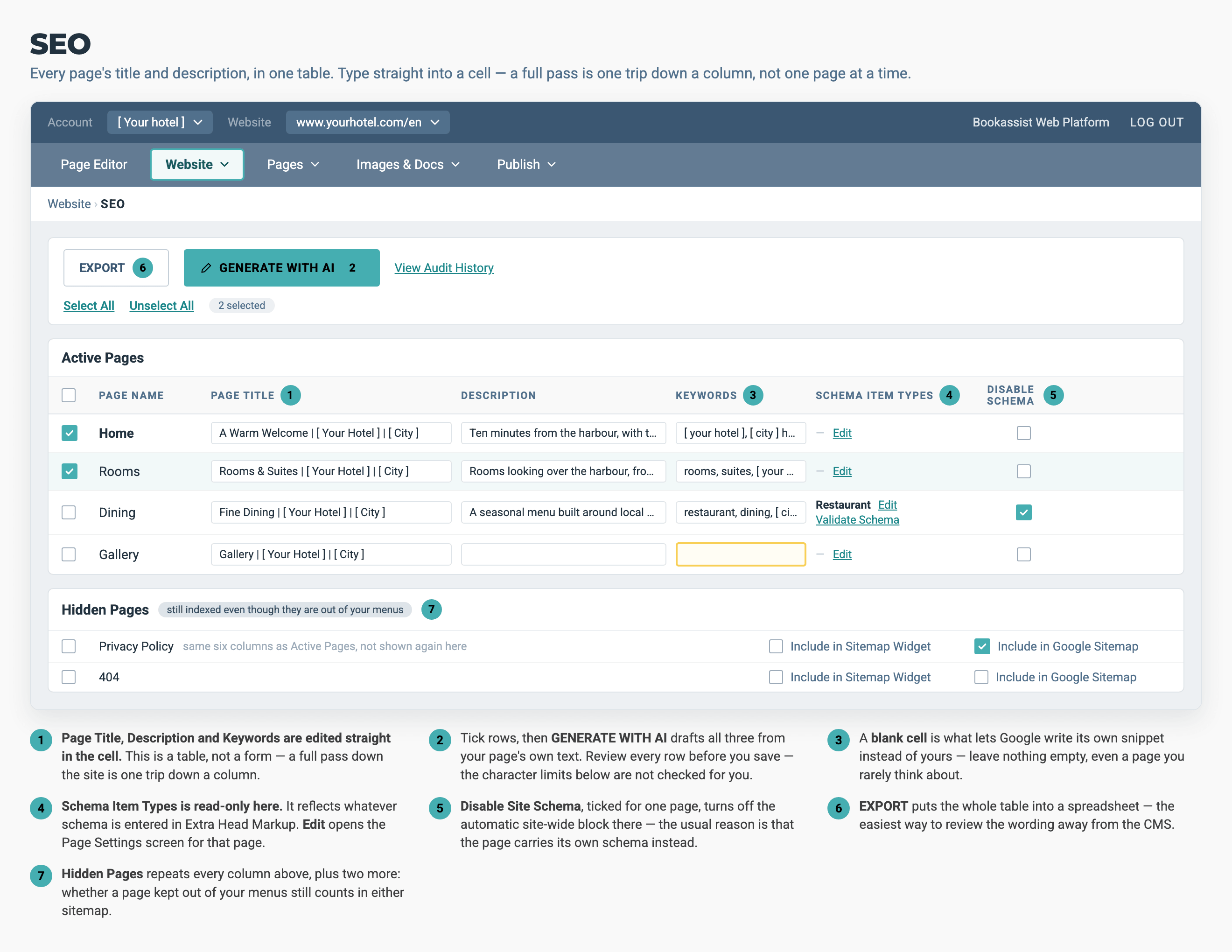
You edit every column here except Schema Item Types. That column is read-only. It shows the schema you entered elsewhere, and its Edit link opens the same page settings shown in step 7 below.
2. Write the Page Title
Type into the Page Title cell. For a hotel page, this pattern works:
[What the page is] | [Hotel Name] | [City]- Home
-
Luna Hotel | Luxury City Centre Hotel | Dublin - Rooms
-
Rooms & Suites | Luna Hotel | Dublin - Spa
-
Spa & Wellness | Luna Hotel | Dublin - Dining
-
Fine Dining Restaurant | Luna Hotel | Dublin
- Keep It to 50–60 Characters: Longer titles are cut off in search results.
- Always Include the Hotel Name and the City: This tells Google which hotel you are and where you are.
- ⚠️ Nothing on this screen stops you going over the limit. The CMS saves a title of any length, and it is cut short later, in the search results. Count before you save.
3. Write the Description
- Summarise the Page in one or two sentences.
- Mention the Hotel Name and Location naturally.
- Add a Reason to Click where it fits, such as "Book direct for the best rate".
- Keep It to 150–160 Characters: Longer descriptions are cut off mid-sentence and end in three dots.
4. Fill In Every Page
- Work Down the Column: Do titles for the whole site, then descriptions.
- Do Not Leave Any Blank: When a page has no description, Google writes its own from whatever text it finds on the page.
- Check the Hidden Pages Table further down the screen. Pages kept out of your menus still appear in search, and they have their own rows.
5. Draft a Whole Site at Once
- Tick the Rows you want, or use Select All.
- Click GENERATE WITH AI at the top of the screen. It drafts titles, descriptions and keywords from your page names, your existing page text, and your hotel's name, city and type.
- Review Every Row Before Saving: Check the character counts against the limits above. Check that the hotel name and city are there, and that the description matches the page.
- ⚠️ The drafts are not held to the character limits. Reviewing them is part of the job, not an optional extra.
6. Save and Publish
- Click Save.
- Publish: Like page content, title and description changes reach visitors when you publish. See How to Publish Your Site.
7. The Other Way In, One Page at a Time
The table is the quick way to do a whole site. When you want only one page, or you need something the table does not show, open that page's own settings instead.
- From Pages: Open the page's Edit menu and choose Page Settings.
- From the page you are editing: Click Page Settings in the top bar.
- Work down the form: It has the same Page Title, Meta Description and Meta Keywords, alongside the page's name, its menu wording and its template.
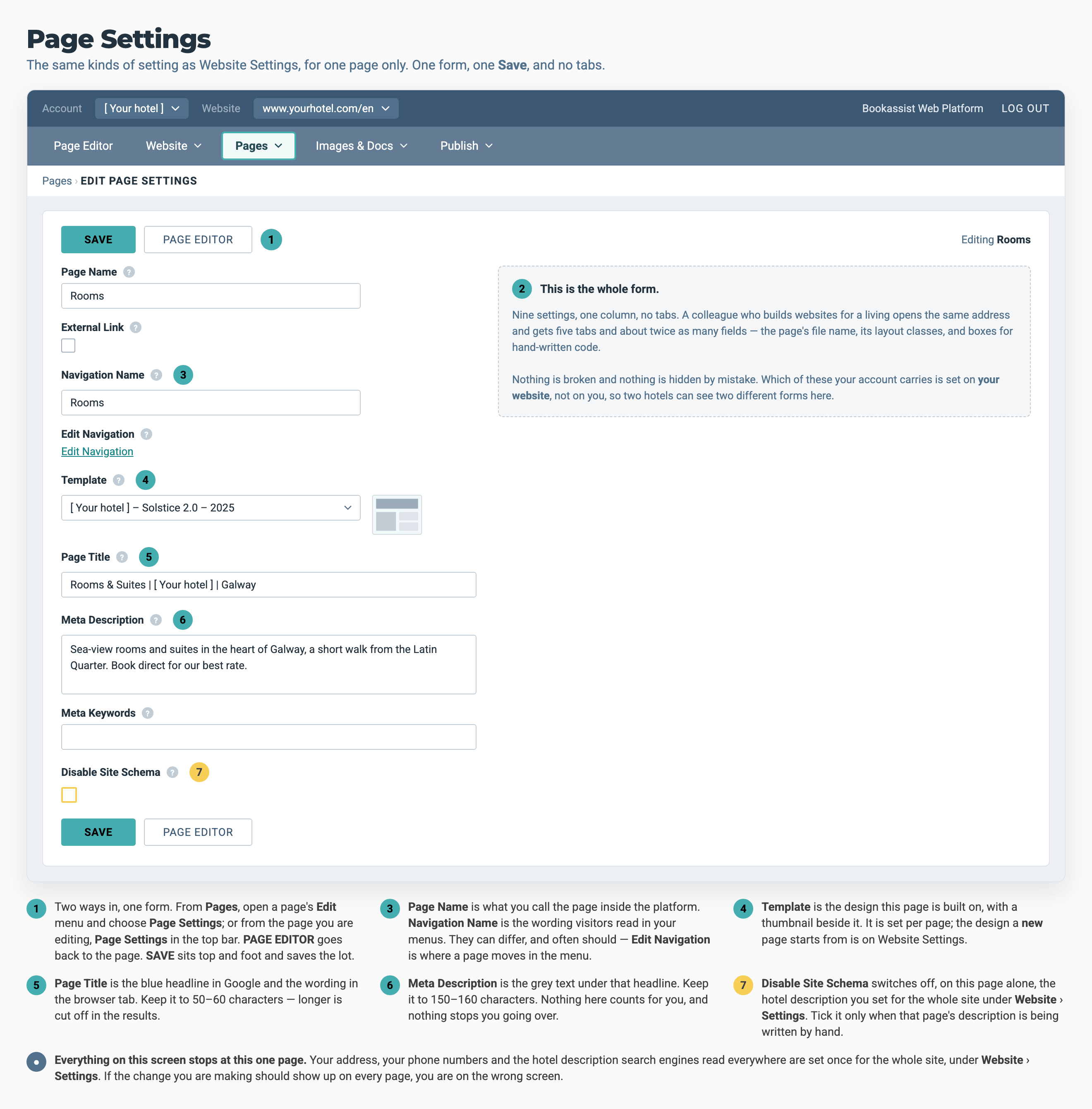
One form and one Save, with all of the page's settings in a single column. When you open it from the Edit link on the SEO table, it appears in a window instead, with CLOSE in place of PAGE EDITOR. Either way, only SAVE keeps your changes.
Make the Four Signals Agree
Google reads several things about a page together, and they should all say the same thing:
- The page address
- Set when the page is created, and fixed after that
- The heading at the top of the page
- The Heading field of the page's introduction widget
- The page title
- This screen
- The page's structured data
- Page Settings, if your site uses it. See How to Build Hotel Schema
A spa page at /spa, headed "Spa & Wellness" and titled Spa & Wellness | Luna Hotel | Dublin, gives one clear answer. The same page headed "Relax With Us" gives two.
Pro-Tips & Troubleshooting
- Take a copy before a big edit. EXPORT at the top of the screen puts the whole site's titles and descriptions into a spreadsheet. It is the easiest way to review the wording outside the CMS, or to give the writing to someone who has no CMS login.
- Google is showing something you did not write. Either the description was blank, or Google decided its own text matched the search better. Fill in the description to take back control.
- Your changes did not appear in search. Publishing puts them on the site. Search engines pick them up in their own time, which is days, not minutes.
- You need to change the page's address, not its title. That is a different field. Click Edit on the row to open the page's full settings. If the address is already live, changing it needs a redirect too: How to Redirect an Old Page.
- The settings window has a CLOSE button and a SAVE button. Only SAVE keeps your changes. CLOSE discards them.
- Two pages have the same title. Search engines treat that as a sign that the pages are duplicates. Give every page a title that names what is on it.
→ Next: How to Redirect an Old Page — keeping search rankings when an address changes
Related: How to Generate Content with AI — the same drafting tool for page text · How to Build Hotel Schema — the structured data behind the page · How to Create a New Page — where a page's address is decided