
Read this first: a redirect is the one thing in the CMS that reaches visitors the moment you save it. It does not wait for Publish. So the order you work in matters, and step 1 below explains it.
Step-by-Step Instructions
1. Publish the New Page First
A redirect starts working immediately, but a renamed or new page does not exist for visitors until you publish it. Do these in order:
- Rename or Create the Page.
- Publish the Site: See How to Publish Your Site.
- Open the New Address in a Browser and check that it loads.
- Only Then Add the Redirect, as below.
- ⚠️ If you add the redirect first, visitors are sent to a page that is not there yet. They see an error until you publish.
2. Open the Redirects Screen
A redirect applies to the whole site, so it is under Website, alongside Forms and Website Overview. It is not under Pages with the page you are redirecting.
- Navigate: Click Website in the top toolbar, then URL Redirects.
- ⚠️ If URL Redirects is not in your menu, it is switched off for your account. It can be turned on. Email support@bookassist.com or ask your project manager.
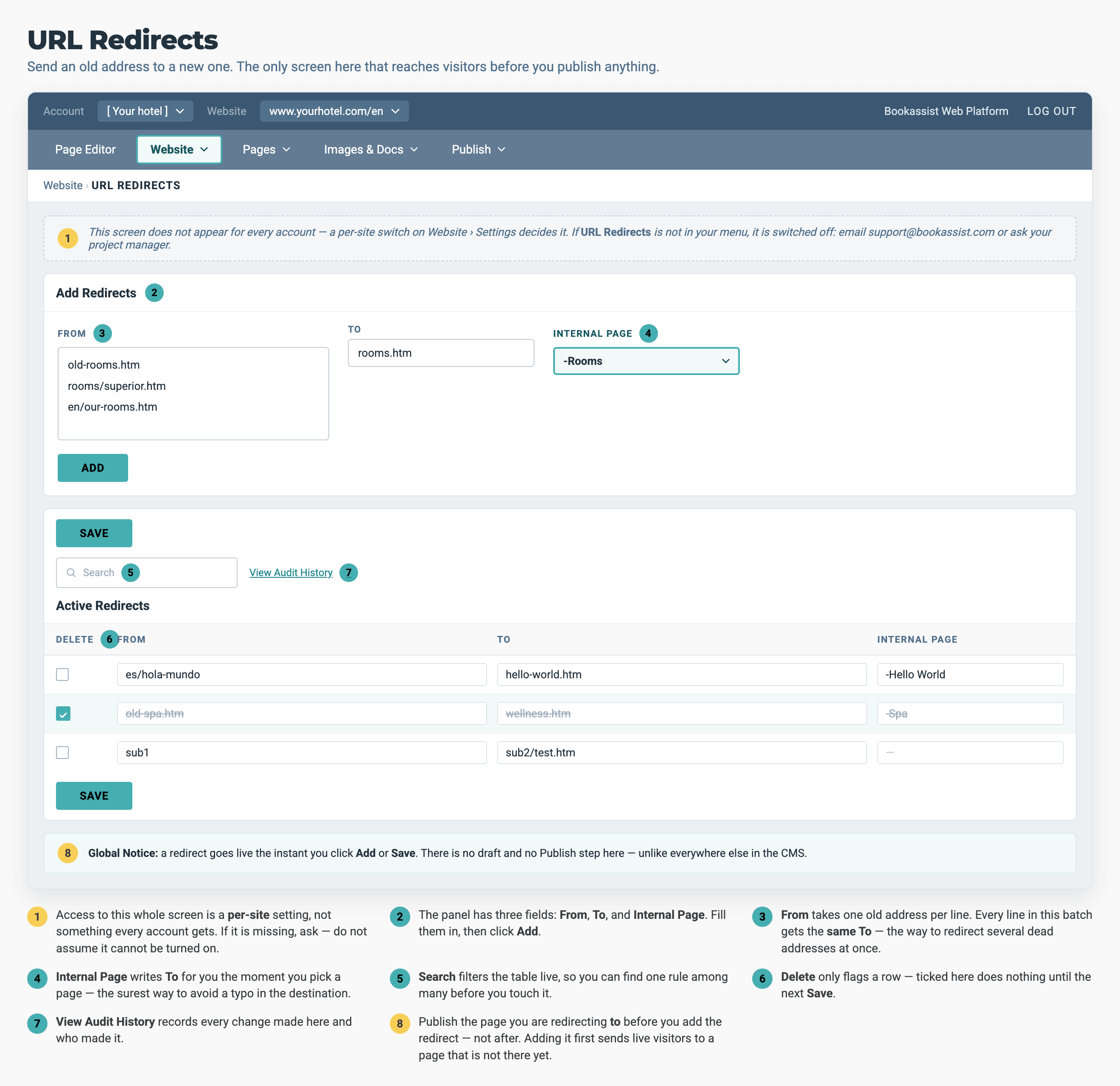
From takes several old addresses at once, one per line. When you pick a page from Internal Page, it fills in To for you.
3. Add the Redirect
The panel has three fields.
- From
- The old address. The box takes several, one per line
- To
- The new address
- Internal Page
- A list of your own pages. Pick one and it fills in To for you
- Type the Old Address into From: Write it the way the examples on the screen do. Leave out the slash at the start, and keep the file extension.
✅ old-rooms.htm ✅ spa/treatments.htm ✅ es/hola-mundo ❌ /old-rooms.htm (slash at the start) ❌ https://www.yourhotel.com/old-rooms (full address) - Set the Destination: Use the Internal Page list whenever the destination is a page on your own site. It writes the path correctly for you. A path written wrongly is the most common reason a redirect does not work, and nothing on the screen warns you about it.
- Click Add.
- Test It: Open the old address in a browser. You should land on the new page in one step.
4. Point Several Old Addresses at One Page
This is the usual case after a site rebuild: several old addresses that now all mean the same page.
- Put One Address Per Line in From.
- Set To Once. Every line in the box gets the same destination.
- Click Add.
From: To: old-rooms.htm rooms.htm rooms/superior.htm rooms.htm en/our-rooms.htm rooms.htm- ⚠️ This works when every address goes to the same destination. If each old address has its own destination, add each pair separately, with one Add per pair.
5. Manage What Is Already There
- Find One: Type in the Search box to filter the table.
- Change One: Edit the row in place and click Save.
- Remove One: Tick its Delete box, then click Save. It is not removed until you save.
- See What Changed: View Audit History records every change and who made it.
Three Rules That Keep Redirects Working
Never point two pages at each other. If the old page goes to the new page and the new page goes back to the old one, the browser goes round in a loop and the visitor gets an error.
❌  old-spa.htm  →  wellness.htm
    wellness.htm →  old-spa.htm

✅  old-spa.htm  →  wellness.htm
Never chain them. If A goes to B and B goes to C, send A straight to C instead. Each extra step is slower and passes on less of the original page's ranking.
❌  page-v1.htm  →  page-v2.htm  →  page-final.htm

✅  page-v1.htm  →  page-final.htm
    page-v2.htm  →  page-final.htm
Send it somewhere relevant, not to the homepage. A retired spa treatments page should go to your spa page. Last year's New Year's Eve page should go to your offers page. A redirect to the homepage passes on nothing about what the page was for.
Pro-Tips & Troubleshooting
- The redirect does nothing. Check the path first: no slash at the start, no full web address, and the file extension included. Then check that the destination is a live page.
- Before adding a batch, check three things. No destination is also listed as an old address somewhere else. Every destination is live. No old address appears twice, because only one rule per address can apply.
- Spot-check after a batch. Redirects are live as soon as you save, so open five or ten of the old addresses in a browser straight away. Each should land on the new page in one step.
- Keep new addresses simple. Lowercase, words separated by hyphens, no spaces or underscores.
- You are moving from another website. Get the list of old addresses from the old site's analytics or search console before it is switched off. After that, there is no way to know which addresses had links pointing to them.
- Do not delete a redirect because it looks old. Links on other websites, in old emails and in printed material can keep sending people to an address for years.
→ Next: How to Write Page Titles and Descriptions — the title and description of the page you redirected to
Related: How to Create a New Page — where an address is set · How to Manage Page Visibility and Navigation — retiring a page from the menus · How to Publish Your Site — the step that has to come first