
If every page repeats the full hotel profile, search engines get two competing answers to "what is this page about?". Instead, describe the hotel once, in a master Hotel block on the homepage (the Hub). Every other page (a spoke) then points to the Hub by its @id.
This guide gives the steps. The background is in the schema reference. The rules it follows are in the page-level schema blueprint and the global schema blueprint. The code to copy is in the schema template library.
Workflow Overview
- Build the master Hotel profile (the Hub) on the homepage.
- Turn off the automatic Site Schema on every page.
- Set up every other page as a spoke and link it back to the Hub.
- Match the code to what the page shows (the mirroring rule).
- Check the raw code, then save and publish.
- Check the live page.
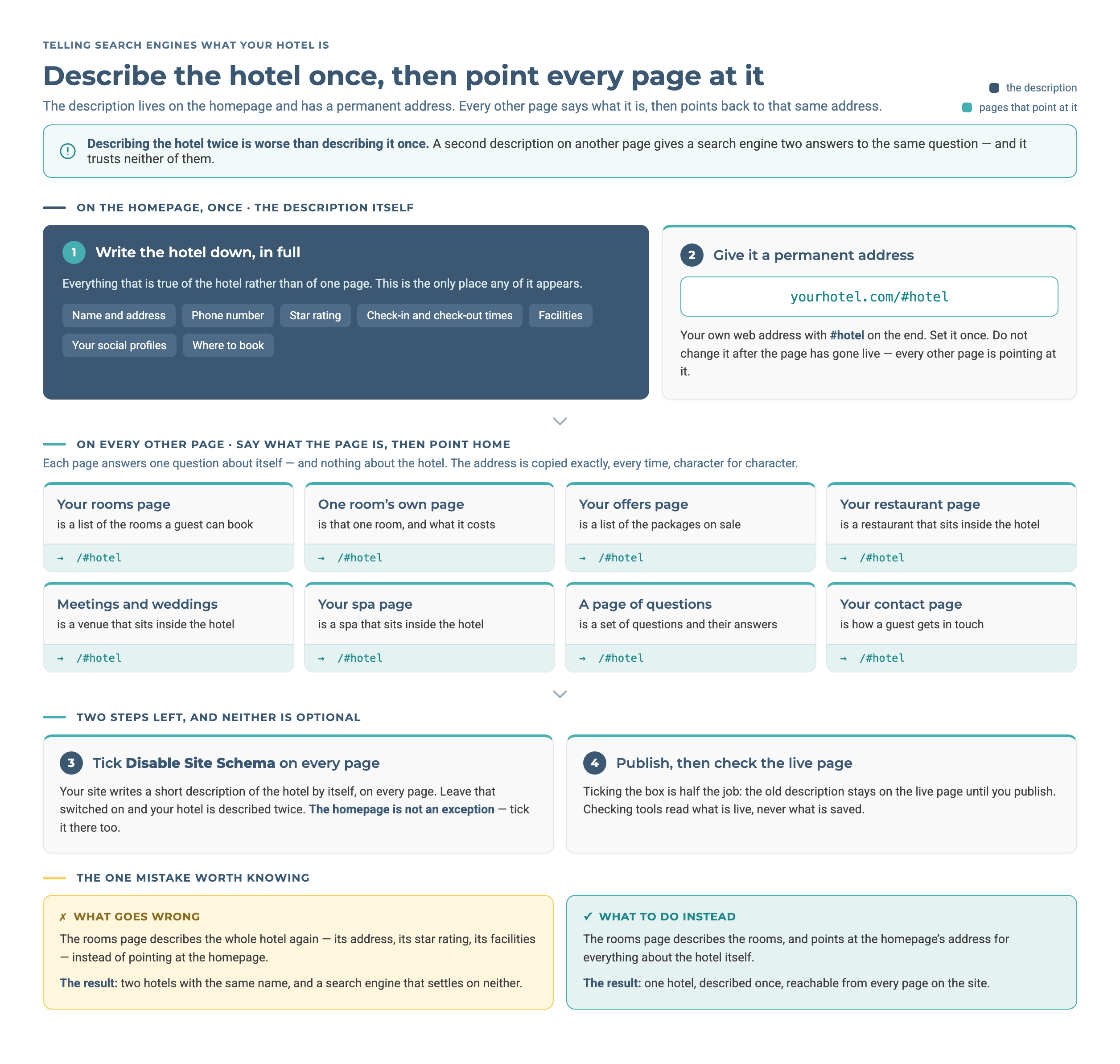
Describe the hotel once, on the homepage, and give that description a permanent address ending in #hotel. Every other page says what it is, such as a room, an offer or a restaurant, and points back to that same address, copied exactly. Tick Disable Site Schema on every page, including the homepage, then publish. Self-catering in a separate building is the one exception to the single address. See step 3.
Step-by-Step Instructions
1. Build the Master Hotel Profile (Homepage)
Why: The automatic Site Schema says very little. It cannot hold starRating, checkinTime/checkoutTime, amenityFeature, sameAs or a booking action. Its @id is the plain site address, with no #hotel on the end. To give search engines a complete description of the hotel, write the Hub by hand.
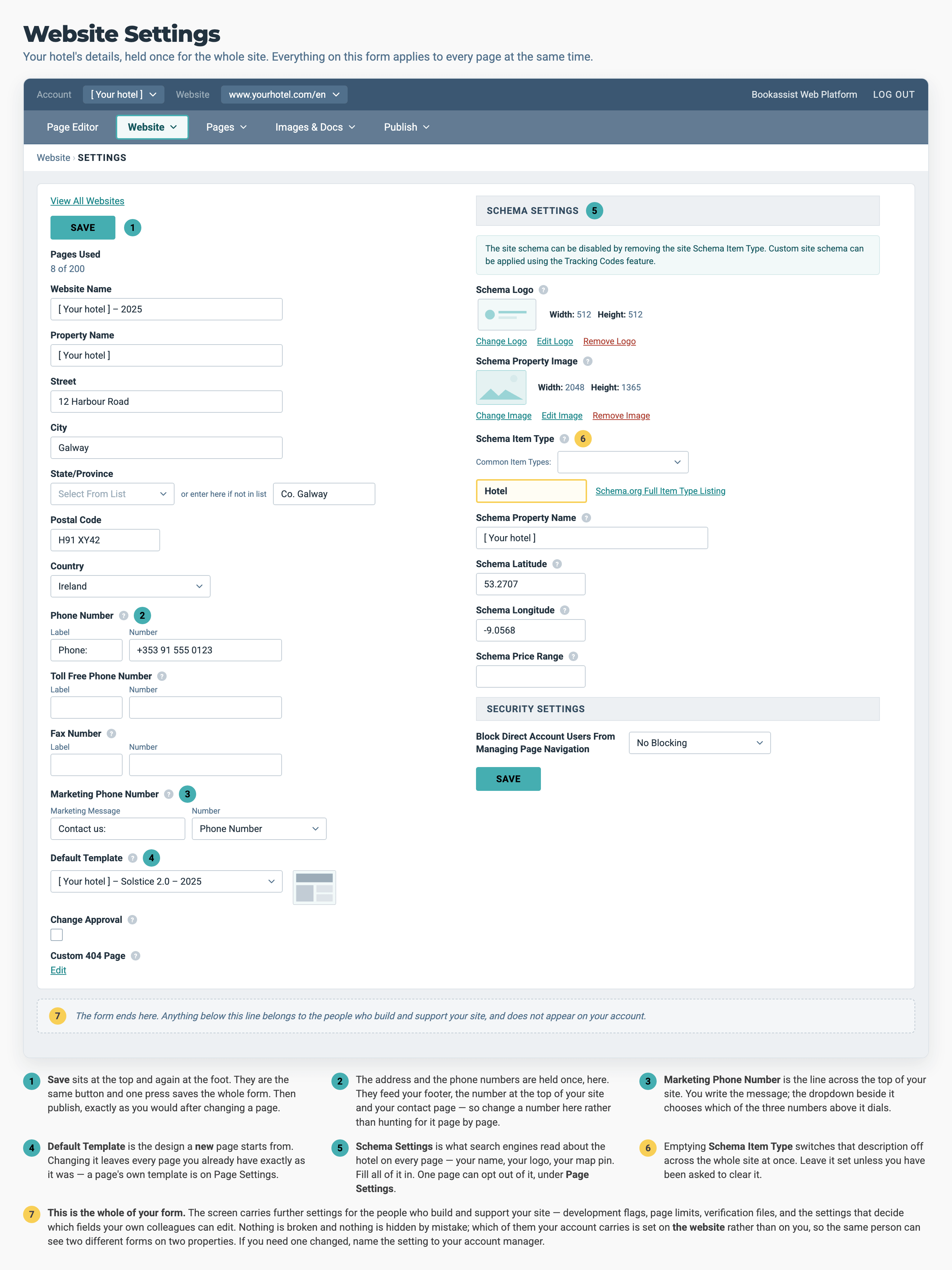
Where the automatic description comes from. Website › Settings holds your hotel's details once for the whole site. The Schema Settings block near the bottom is everything the automatic version can say: a logo, a property image, the item type, the name, a map pin and a price range. It has no star rating, check-in times, facilities or booking link, which is why you write the Hub by hand.
- Go to Website → SEO and find the homepage row. Click Edit under the Extra Head Markup / Schema Item Types column, then click the Markup tab.
- Paste a full
Hotelblock. Use template T1 in the schema template library. - Give it a permanent identifier:
"@id": "https://www.example.ie/#hotel". Every page uses this to refer to the hotel, so do not change it once it is published. - Keep
makesOfferoff the Hub. Room offers belong on the spoke pages, not on the master block.
2. Disable the Auto Site Schema Everywhere
Why: If the automatic Site Schema stays on while your Hub is in Extra Head Markup, the page carries two Hotel blocks with two different @ids. That is exactly the confusion the Hub & Spoke method removes.
- In the Website → SEO table, tick Disable Site Schema for every page, including the homepage.
- Publish each page. Ticking the box is not enough. The automatic block stays in the live page until the page is published again. Do this for hidden pages and pages outside your menus too, because any page a search engine can find can still carry the duplicate.
3. Define Sub-Pages and Link Them Back
Why: A spoke should answer one clear question about its page. Search engines then do not have to choose between the hotel and the page's real subject.
- Single item: a page about one room, offer or restaurant uses that specific type (
HotelRoom,Offer,Restaurant). - A list: a page that lists all rooms or all offers uses a
CollectionPagewrapped around anItemList. This groups the items and tells search engines that the page is a collection, which is clearer than one large block.
Use this table to pick the spoke @type, the property that connects it to the Hub, and the template to copy. Every template is in the schema template library.
Homepage
Spoke @type: Hotel (the Hub, which defines #hotel)
Connect to Hub via: None (it is the Hub)
Template: T1
Rooms, all types on one page
Spoke @type: CollectionPage → ItemList of Offer → HotelRoom
Connect to Hub via: about
Template: T2a
Room, one page per type
Spoke @type: HotelRoom + makesOffer
Connect to Hub via: isPartOf
Template: T2b
Offers / packages, list page
Spoke @type: CollectionPage → ItemList of Offer
Connect to Hub via: about
Template: T3
Single offer / package
Spoke @type: Offer
Connect to Hub via: offeredBy
Template: T3b
FAQ (or any page with FAQs)
Spoke @type: FAQPage
Connect to Hub via: about
Template: T4
Restaurant / bar
Spoke @type: Restaurant / BarOrPub
Connect to Hub via: containedInPlace
Template: T5
Blog / guides, list page
Spoke @type: ItemList of WebPage
Connect to Hub via: about
Template: T6
Event
Spoke @type: Event
Connect to Hub via: location
Template: T7
Self-catering unit inside the hotel (apartment, suite)
Spoke @type: Apartment + makesOffer
Connect to Hub via: isPartOf
Template: T8a
Self-catering in a separate building (cottages, lodges, apartment complex)
Spoke @type: ApartmentComplex (its own Hub)
Connect to Hub via: parentOrganization
Template: T8b
Contact
Spoke @type: ContactPage
Connect to Hub via: about
Template: T9
Nearby third-party facilities (parking)
Spoke @type: WebPage → ItemList
Connect to Hub via: about
Template: T10
Meetings / weddings venue
Spoke @type: EventVenue
Connect to Hub via: containedInPlace
Template: T11
Spa / wellness
Spoke @type: HealthAndBeautyBusiness
Connect to Hub via: containedInPlace
Template: T12
Golf
Spoke @type: GolfCourse
Connect to Hub via: containedInPlace
Template: T13
If the hotel also has self-catering: cottages, lodges or apartments
Two rows above cover this. To pick between them, ask one question. It is not about what the units are called or how they are sold. It is about whether a guest who arrives there is arriving at the hotel.
Do the units share the hotel's building, entrance and check-in desk?
- Yes: they are a room type. Use T8a, with an
@typeofApartment, connected withisPartOf→#hotel, exactly like any other room page. Nothing else about the site changes. - No (a separate address, its own entrance or its own check-in): they are a second property.
The self-catering landing page becomes a small hub of its own, with an
@idending#complex. It connects to the hotel withparentOrganization→#hotel. Each unit page then points to#complexinstead of#hotel. Use T8b for the landing page and T8a for the units.
Note
The second case is still Hub & Spoke. It is the same pattern used twice, with the self-catering hub between the units and the hotel. It is not a second Hotel or LodgingBusiness block. A block like that has no @id of its own, so it competes with the hotel instead of connecting to it.
Copy the master @id (.../#hotel) into every connection block exactly, character for character. Match the block's @type (Hotel) and name to the Hub exactly too. Never describe the hotel again on a sub-page with a second bare Hotel or LodgingBusiness block.
4. Match the Code to the Visible Content (Mirroring Rule)
Why: Everything the schema says must be visible to the visitor on the page. Search engines ignore or reject schema that describes content the page does not show.
- Build the page content first, with the standard CMS widgets.
- Copy that exact content, such as room amenities, prices and FAQ answers, into the JSON-LD. Do not add details to the code that are not on the page. For rooms and offers, take prices and price groups from the Bookassist price-group feed, not from the page HTML, because prices on the page go out of date.
5. Validate the Raw Code, Then Save and Publish
Why: JSON-LD is strict. One missing bracket { or unclosed quotation mark breaks the whole block. If you catch it before it goes into the CMS, you do not have to reopen the page and fix it.
- Code-snippet test: paste the raw block into the Schema.org Validator using the Code Snippet method and fix any errors. This checks only that the code is written correctly. On a spoke it does not show the Hub's master properties, and that is expected.
- Save in the CMS: in Website → SEO, open the page's Edit → Markup window, paste the code, and click Save at the top of the window (not Close). The SEO table then reads the block and shows the
@typeit found in the Schema Item Types column. Reload the screen if it does not appear straight away. - Publish: use Publish → Publish Website. Validation tools cannot read changes that are saved but not yet published.
6. Validate the Live Page (Final Check)
Why: The live test checks the whole page, not just the block you wrote. It is the only way to confirm that the new code is live and the automatic Site Schema is gone.
- Copy the address of the published page, open the Schema.org Validator, paste the address and run the test.
Check It Worked
- Zero errors: the tool finds the type you expect (for example
HotelRoomorRestaurant) and reports no errors. - The "missing" master properties are normal: a spoke does not show the hotel's star rating or check-in time, because the validator reads only the one address you gave it. The spoke carries the master
@id(.../#hotel), so Google connects it to the full hotel record itself, in its Knowledge Graph. - The automatic schema check: if the live result shows your spoke block plus a second
Hotelblock whose@idis the plain site address, the automatic Site Schema was not disabled or the page was not published again. Go back to step 2.
Pro-Tips & Troubleshooting
- No access to Head Markup? Your account may not have permission to edit it. Contact support@bookassist.com.
- Rooms and offers show errors in the Rich Results Test: a room
Offertriggers "Vacation Rental" errors in Google's Rich Results Test. These are not schema errors, and the Schema.org Validator passes the same markup. Check room and offer pages in the Schema.org Validator, and ignore the Rich Results Test for them. - Two validators, two jobs: the Schema.org Validator checks that the schema is written correctly. Always use it. The Google Rich Results Test checks whether a page qualifies for one of Google's special search result displays. Use it only for
Eventpages, or to check the map pin on aLocalBusinessorEventVenue. Most valid hotel schema produces no special display, and that is expected. - Page type → template: each page type has a template in the schema template library: T1 homepage Hub, T2a/T2b rooms, T3/T3b offers, T4 FAQ, T5 restaurant, T6 blog, T7 events, T9 contact.
→ Next: How to Add FAQ Schema — the one spoke you can add without touching the Hub
Related: How to Edit an Existing Page — getting to the page whose markup you are editing · How to Publish Your Site — take the markup live