
Read this first: every submission is kept in the platform itself, and that stored copy is what the dashboard figures, the report and the export are all built from. The notification email is a copy, not the record. One setting deletes all of it, and the last step covers it.
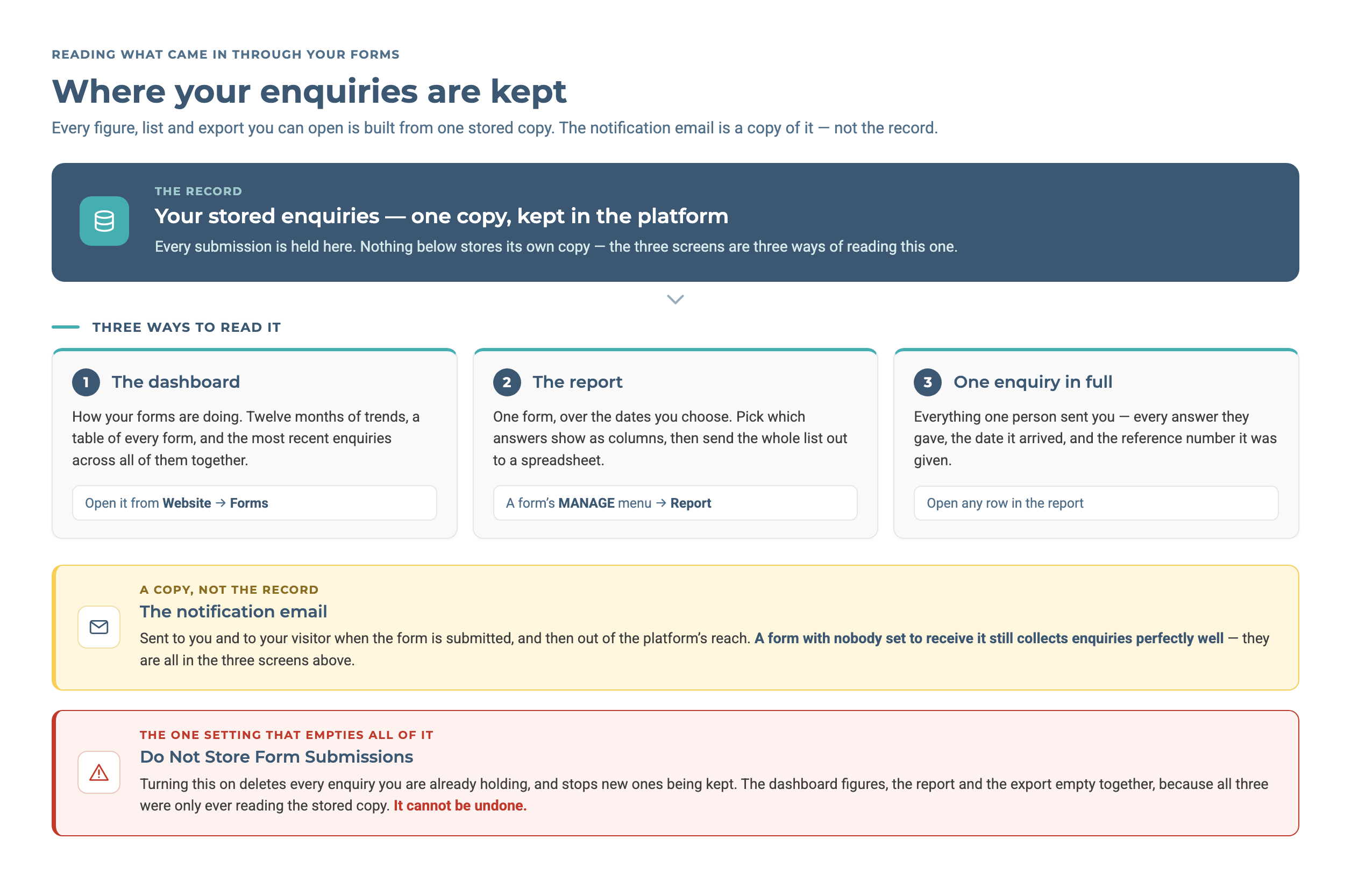
Three screens, all built from the one stored copy. The notification email is not connected to any of them. It is a copy that leaves the platform, which is why a form with no recipient still collects enquiries.
Step-by-Step Instructions
1. Check How a Form Is Performing
Open Website → Forms from your website's top bar. Forms is under Website, not under Pages, because Website holds the settings that apply to the whole site.
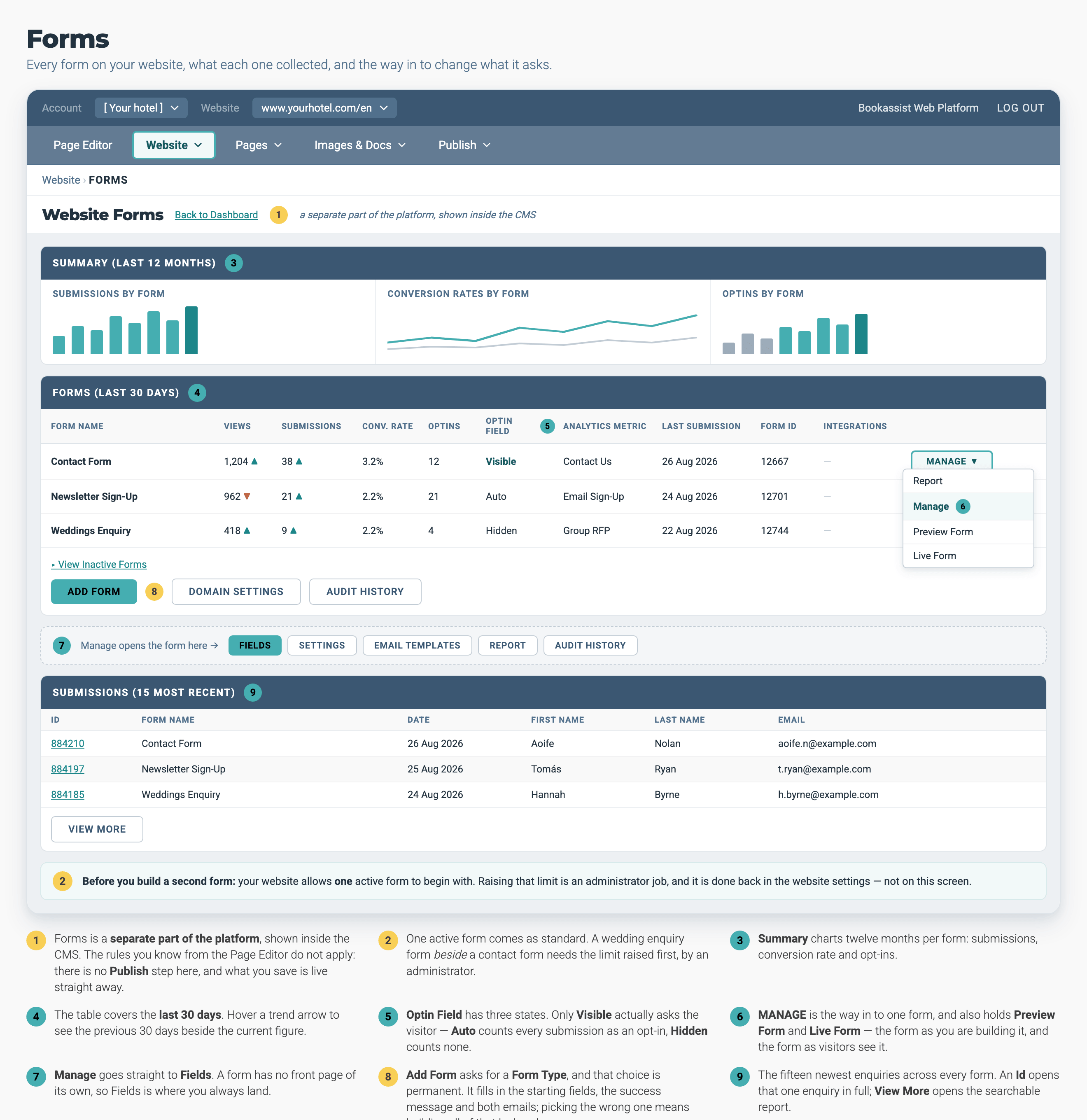
Everything in this guide starts from the MANAGE ▾ menu on a form's row. Report opens the submissions; Manage opens the form itself.
The dashboard shows three things:
- Twelve months of trends — submissions, conversion rate and opt-ins.
- A table of the last 30 days, form by form, with an arrow on each figure. Hover over the arrow to see the previous 30 days beside the current ones.
- The fifteen most recent submissions across every form, newest first.
One figure is easy to misread. Views counts how many times the form was loaded, which is not the same as how many people looked at it. A form in a page's footer is loaded on every visit to that page.
2. Read a Single Enquiry
Click any submission's Id, on the dashboard or in the report. The enquiry opens on its own screen showing the reference number, which form it came from, when it arrived, and every answer the visitor gave.
The screen is read-only. There is nothing on it to edit, delete or export, so opening an enquiry cannot change it, and you can share the link with colleagues safely.
Use your browser's back button to return. The Back to Report link goes back through your browser history, so it works only if you came from the report.
3. Filter the Full List
Click the REPORT tab inside a form, or VIEW MORE under the dashboard's recent submissions.
Set the filters under CUSTOMIZE REPORT, then click UPDATE REPORT:
- Domain
- One of your websites, or all of them
- Form
- One form, or all forms. Inactive forms are listed too, marked as such
- Start Date · End Date
- The period, in month/day/year. Both are required
- OptIns/OptOuts
- Everyone, only those who opted in, or only those who did not
The date range cannot be longer than six months. For a full year, run two reports.
4. Export to a Spreadsheet
Set your filters, click UPDATE REPORT, then click EXPORT REPORT. The download contains exactly what the filters selected, not the whole form.
5. Choose Which Answers Appear as Columns
By default, a form's report shows only the first name, last name and email. So a wedding enquiry's date, guest count and message are in the enquiry but not in the list or the export.
To add them:
- Go to the FIELDS tab of the form and click REPORT COLUMNS.
- Select a field in the available list and click Add. It moves across to the chosen list.
- Order the columns with Top, Up, Down and Bottom.
- Click SAVE.
These columns apply when the report is filtered to that one form. Choose the two or three that let somebody recognise an enquiry at a glance. The export carries the rest of the detail anyway.
6. Delete Submissions
Deleting is done from the report, and only from there.
- Filter the report to the submissions you want to delete.
- Tick the box at the end of each row.
- Click DELETE SELECTED.
This is permanent. It is also the only way to remove an enquiry, because the enquiry screen has no delete button.
7. Find Out What Changed on a Form
AUDIT HISTORY records changes to a form's own configuration: which setting changed, what it changed from and to, when, and who did it. Use it to answer a question such as "the form stopped emailing us, what happened?"
You can open it in two ways: the AUDIT HISTORY tab inside a form, or the button on the dashboard, which covers every form at once. Set a date range and run the search.
Three things to know before you rely on the results:
- Search 60 days or fewer at a time. The screen accepts a longer range and then refuses it when the search runs.
- **An empty result means nothing changed between those dates.** Try earlier dates before you conclude that a form has no history.
- Not every change was made by a person. Some rows are recorded against the system itself, so the answer to "who switched this off?" can be "nobody".
To compare two records, tick exactly two and click COMPARE SELECTED. Choose two records of the same setting on the same form. The comparison does not check that they match, so it will show a captcha change beside an on/off change as though one became the other. If you tick three or more, only the first and the last are compared.
8. Know What Destroys Data
Caution
Do Not Store Form Submissions is not a privacy switch. Ticking it, on the SETTINGS tab, permanently deletes every submission the form has already taken, and stops future ones from being kept. After that, the only copy of an enquiry is the notification email, so a form with no recipient address collects nothing at all. The form's reports are emptied too, because they are built from the stored submissions. The setting exists for hotels that are not permitted to store data in the United States. Contact support before using it.
Two other actions cannot be undone:
- Delete Form on the SETTINGS tab
- The form and every submission it has ever taken
- DELETE SELECTED on the report
- The ticked submissions
Taking a form offline is different, and it is safe: untick Form Active and everything it has collected stays in your reports.
Pro-Tips & Troubleshooting
- "An enquiry is missing." Widen the date range first. The report opens on a short date range, and the dashboard shows only the fifteen newest.
- "The report does not show what the guest typed." Add those fields as columns (step 5), or open the enquiry itself.
- "The audit history is empty." Search 60 days at a time, working backwards. An empty result describes those dates, not the whole form.
- "The conversion rate looks too low." Views counts how often the form loads, not how many people saw it. A form in a footer or on a busy landing page loads far more often than it is read.
- Export before you delete. There is no undo on DELETE SELECTED, and no copy anywhere else.
- Enquiries contain personal data. Once an export is downloaded, the platform no longer protects it, so keep it where you keep the rest of your guest data.
→ Next: How to Set Up RFP Forms — the wedding, meetings and golf enquiry forms
Related: How to Manage Website Forms — creating a form and its fields · How to Set Up Form Notification Emails — who gets told about a submission