
Open a widget for editing when its widget label is hidden behind another label or under the top bar, so you cannot hover it in the usual way.
Read this first: a label you cannot reach is a display problem, not a permissions problem. The widget is on the page and you can edit it. You only need a different way to open it.
Step-by-Step Instructions
1. Work Out Which Problem You Have
A label can be out of reach for two reasons, and each has its own fix.
| What you see | What is happening | Go to |
|---|---|---|
| Two labels on top of each other, with only the end of one showing | Several widgets start at nearly the same point, so their labels are in the same spot | Step 2 |
| The first widget's label is cut off by the top bar, or is not visible at all | The page has no hero image, so the content starts higher up and the first label is under the top bar | Step 3 |
2. Separate Overlapping Labels
Widgets near the top of a page, such as an introduction, an email sign-up, a booking prompt or a modal popup, often start in almost the same place. Their labels then sit on the same spot, and the one in front hides the one behind.
- Hide the label in front: Each widget label has a small × at its right edge. Click it. That label disappears and the one underneath becomes visible.
- Repeat as needed: If a third label is behind that one, click its × too. Keep going until the label you want is on top.
- Hover the label you wanted: The widget is highlighted, and the widget options appear.
- Bring the labels back: Move the cursor away from that part of the page. Every label you hid returns.
- ⚠️ Clicking × hides a label for a moment only. It does not remove the widget or change anything on your site.
3. Scroll the Page Down a Little
On a page with no hero image, the content starts directly below the top bar, and the first widget's label is hidden behind the bar.
- Scroll down slightly: A small scroll moves the content out from under the top bar, and the label comes into view.
- Hover the label: The widget is highlighted and the widget options appear.
- ⚠️ Scroll in small steps. If you scroll too far, the label goes off the top of the screen.
4. Use Website Overview Instead
If you still cannot reach the label, you do not need the page at all. Website Overview lists every widget on every page of your site in a table, and each row has its own Edit link.
- Open it: In the Website menu at the top of the Page Editor, click Website Overview.
- Narrow the list: There are three dropdowns above the table: Region, Widget and Page. Tick the page you are working on, or the type of widget you are looking for, then click Filter.
- Find your widget: The table groups results by page, then by region, then by widget. Read down the list to the widget you want.
- Check you have the right one: Where a row has an Expand Widget Details link, click it to see the text and images saved in that widget, without opening it.
- Open it: Click Edit on that row. The widget's editor opens, exactly as it does from the page.
- Save: Make your changes and click Save, then Publish when you are ready for visitors to see them.
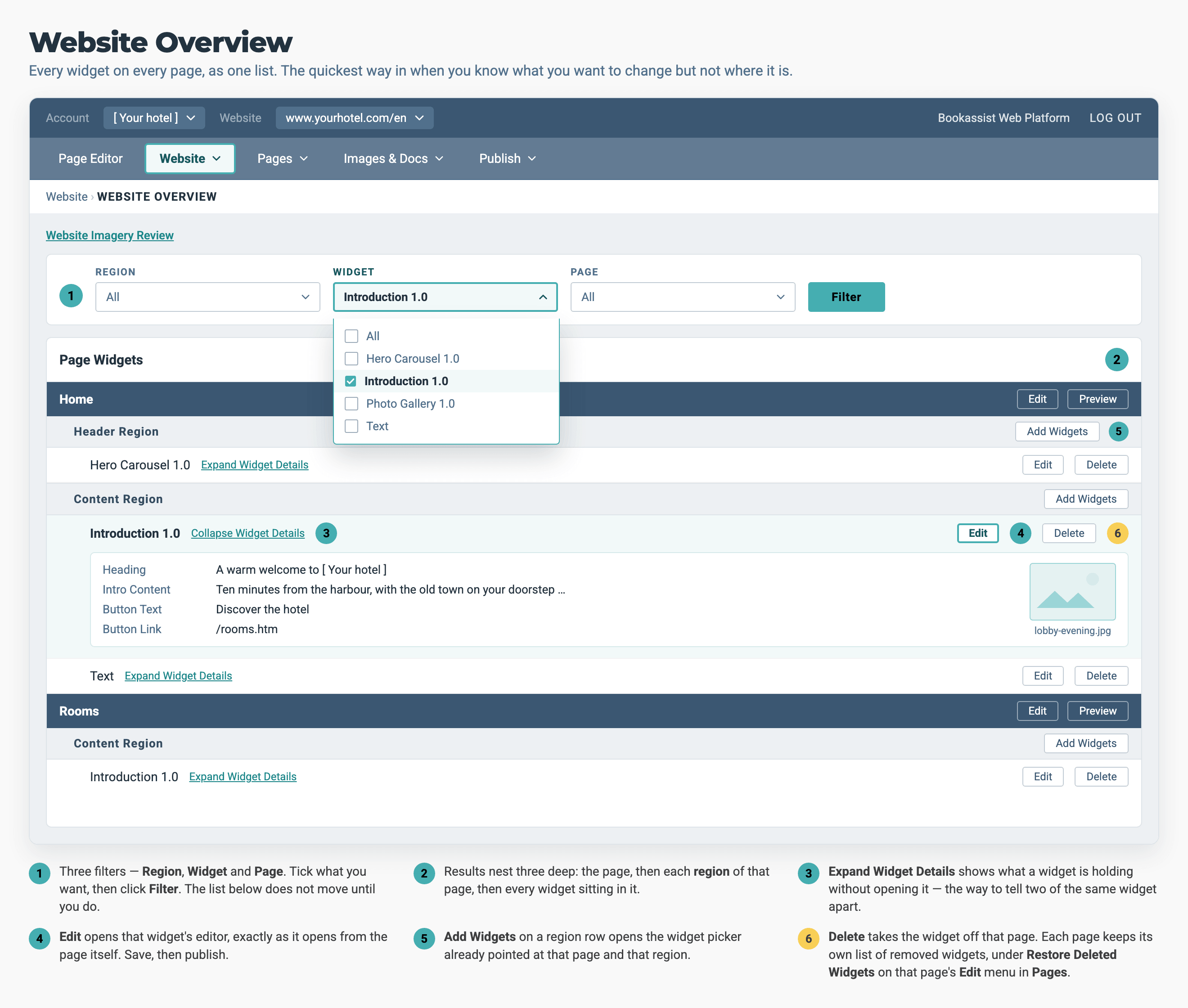
Set the three filters, then click Filter. The table does not change until you do. Results are grouped by page, then region, then widget, and every widget row has its own Edit link.
Pro-Tips & Troubleshooting
- Use Website Overview first when you know what you want. If you already know which widget you need, the table is quicker than finding it on the page, and it works wherever the label is.
- You cannot tell two similar widgets apart? Two widgets of the same type on one page look identical in the list. Use Expand Widget Details to read the saved content of each, and pick the one with the text you want to change.
- The × does nothing? Check you are clicking the × on the label itself and not near it. The target is small.
- Still no label anywhere on the page? Make sure you are in the Page Editor and not in a preview. Labels are shown only while you are editing.
- A widget appears on every page. If its label includes (Global), it is part of your header or footer, and changing it here changes it on every page. See How to Edit Your Header and Footer.
- The widget you want is not in the Website Overview list at all? It is not on that page. To add it, see How to Add a Widget to a Page.
→ Next: How to Fill In a Widget — filling in the widget now that you have it open