
Read this first: you can edit these from any page, and the change appears on all of them.
You cannot make the edit affect only the page you have open.
Step-by-Step Instructions
Follow these steps to update site-wide content, such as your logo, footer navigation, social icons or newsletter sign-up. Before you click Save, remember that your changes will apply wherever that widget appears—not just on the page you have open.
1. Check the Widget Label Before You Edit
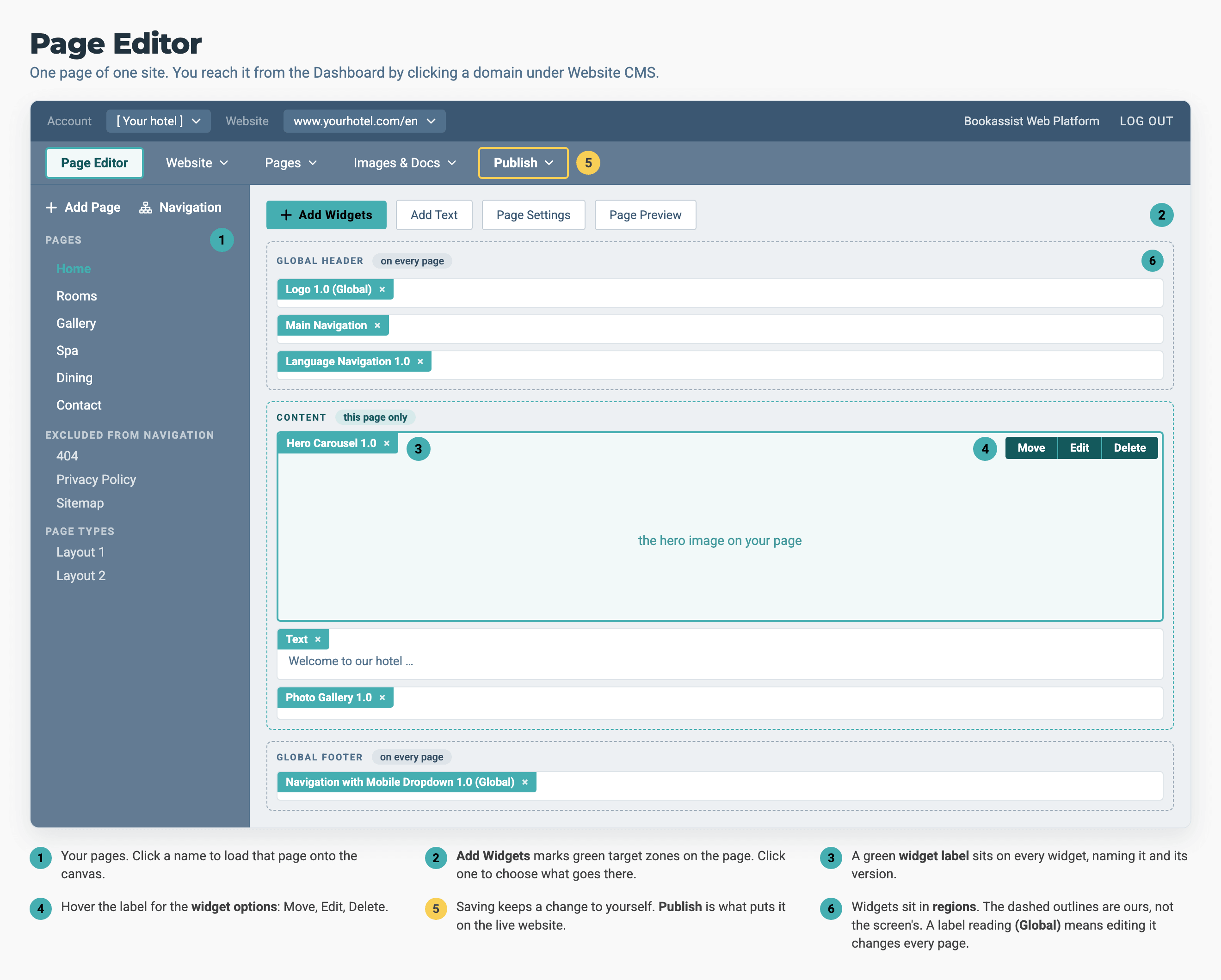
Site-wide content sits above and below your page content, and it looks the same as everything else in the Page Editor. Only the label tells you which is which.
- Open Any Page in the Page Editor. You can edit site-wide content from any page.
- Look at the green widget label at the widget's top-left.
- Look for
(Global): A site-wide widget's label shows its name followed by(Global), for example Logo 1.0 (Global).- ⚠️ This marker is the only warning you get. Once you save, the change is on every page, and you cannot undo it for one page only.
2. Edit It the Normal Way
- Hover the label, then click Edit.
- Change what you need: The panel works exactly like any other widget's. See How to Fill In a Widget.
- Click Save.
- Preview and Publish: Check a few different pages in Page Preview, not only the one you were on.
3. Show a Footer Block on Some Pages Only
A site-wide widget normally appears on every page. To change that, do not add or delete the widget anywhere. Set a list of pages on the widget itself.
- Open the widget's editor.
- Click WIDGET ADMIN.
- Choose Include or Exclude, then apply it to a list of pages or to a whole section of the site.
- Save.
- ⚠️ If WIDGET ADMIN is not on the panel, your account does not have permission for it. Ask the person who manages your website, or email support@bookassist.com.
Where Each Part of the Page Actually Lives
The CMS's name for an area is not always the name you would give it when you look at the site. This picture shows one page, with each area named on the part it controls.
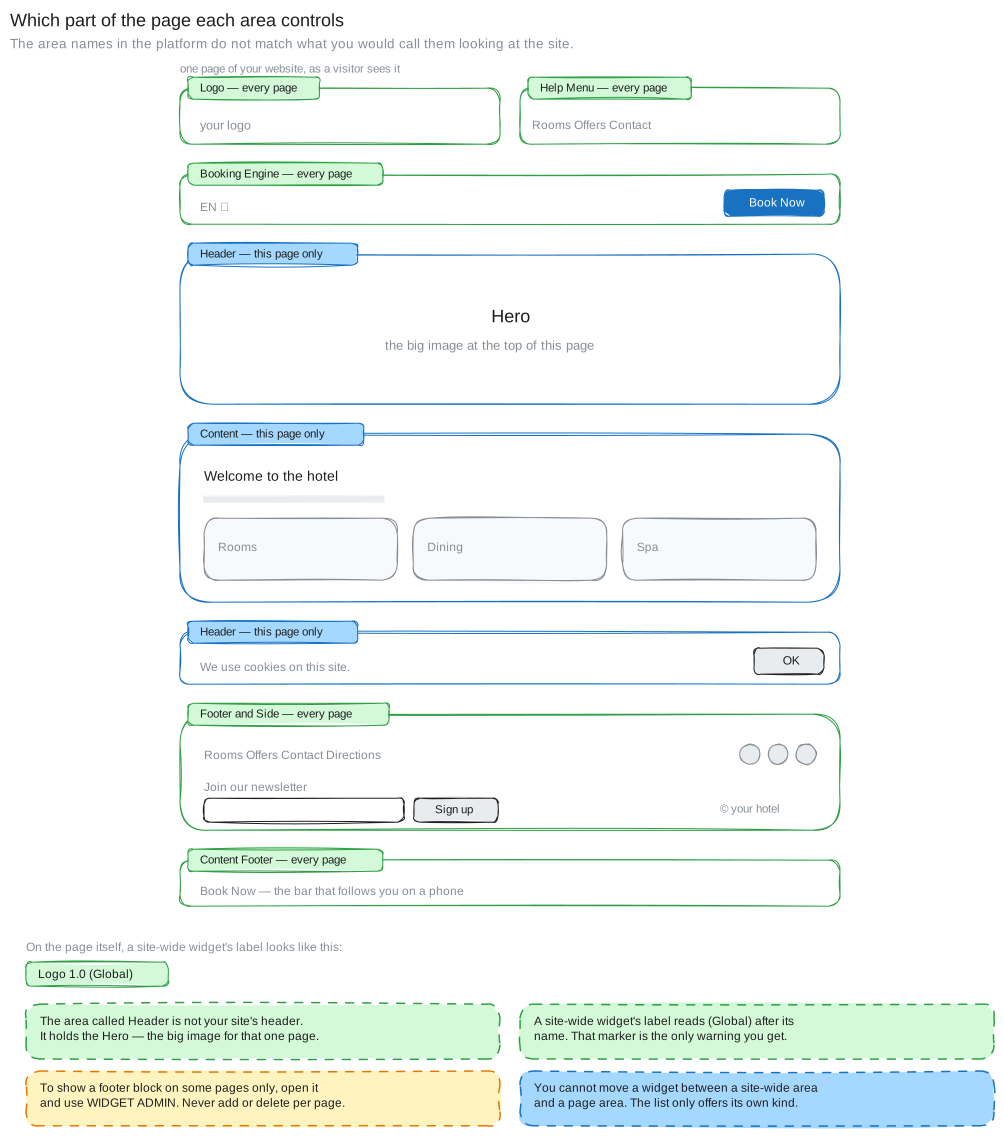 Each green area is one piece of content shown on every page: the Logo, the Help Menu across the top, the Booking Engine holding the language switcher and the booking control, the Footer and Side areas holding footer navigation, social icons, the newsletter sign-up and the copyright line, and the Content Footer holding the sticky bar on a phone. Blue areas belong to the page you are on: the Header, which holds the Hero (the big image at the top) and the cookie message, and the Content area below it.
The region called Header is not your site's header. It holds the Hero, the big image for that one page. The logo, the language switcher and the top links each have their own site-wide region. This is the most common mix-up on this screen.
Pro-Tips & Troubleshooting
- You cannot drag a widget between a site-wide area and a page area. When you use Move, you are only offered areas of the same kind, so that move is not available. This is deliberate. A site-wide widget is one piece of content shown on every page, and a page area holds separate content for each page. To show a block on one page only, use WIDGET ADMIN as in step 3 above.
- The phone number, address and hotel name in your footer are not widgets. They are stored once as site details and added to each page automatically. That is why the footer widget may not have the field you want to change. Ask the person who manages your website to change it in the site settings.
- The cookie message belongs to each page. It looks site-wide, but it is not. Changing it on one page changes it on that page only.
- Check more than one page before you publish. A site-wide edit that looks right on the home page can look wrong on a long page or a page with no hero. Checking two or three different kinds of page in Page Preview takes a minute.
- Your site can be arranged differently. The picture above shows the usual arrangement. If a widget label on your site says
(Global), that widget is site-wide on your site, whatever the picture shows.
→ Next: How to Publish Your Site — a site-wide change still waits for Publish