
Each file exists only once, so a change to it shows on every page in this list.
Read this first: nothing on this screen can alter your site. It is a list with links, so it is safe to open on anything at any time.
Step-by-Step Instructions
1. Open the List
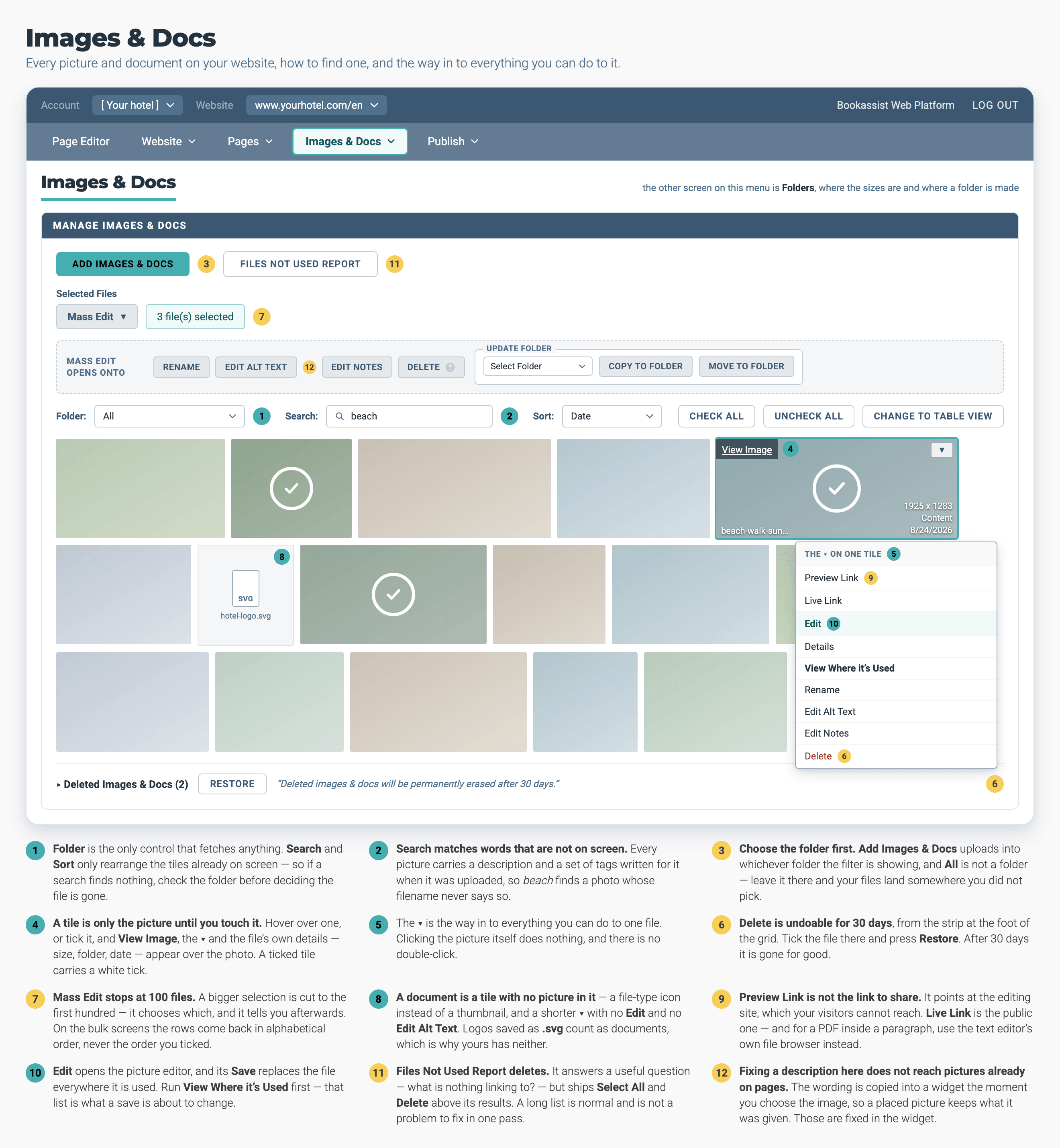
Everything to do with pictures and files is under Images & Docs. View Where it's Used is in each tile's own menu, not in the toolbar.
- Navigate: Click Images & Docs in the menu bar.
- Find the File: Narrow the grid with the Folder dropdown, or type a word into Search.
- Open the Menu: Click the ▾ on the tile and choose View Where it's Used.
2. Read It
The screen opens with These pages and widgets currently link to the file selected, and one row for every place the file appears. The columns to read:
- The thumbnail
- The file itself, with its dimensions and file size
- Page Name
- The page a visitor sees it on
- Location
- The widget that holds it, such as Feature List 1.0, Hero Image 1.0 or Text
- Edit
- A link straight into that widget on that page
- One page, several rows: the file is used more than once on that page.
- Location says Text: the picture is inside a block of text, not in a widget's Image field.
- No rows at all: the screen says The file selected is not used on any pages or widgets.
3. Go Straight to the Widget
- Click Edit on a Row: You land in that widget on that page, ready to change the picture, its description or its focal point.
- Save and Publish: Save the widget, then publish the page. See How to Publish Your Site.
4. Decide What to Do Next
- A handful of pages you recognise
- Go ahead. Use Save As in the image editor if you only want one of them changed.
- More pages than you expected
- Do not overwrite it. Make a copy instead. See How to Crop or Resize an Image.
- Nothing
- The file is not on your site. You can consider deleting it. See How to Tidy Up Unused Files.
Pro-Tips & Troubleshooting
- Run it before a rename. Renaming is quick and the list tells you which pages to check afterwards.
- Run it before you press Save in the image editor. That button replaces the original on every page, and this list shows you which pages.
- Pictures inside a text block do show up. They appear with Text in the Location column, and the Edit link opens that text block.
- A file with no rows can still be part of your design. Logos, favicons and background graphics your designer set up are part of the site's template rather than placed on a page, so they will not be listed. Leave anything that looks like part of the design alone.
- Use it on documents too. A PDF menu or a rate sheet has the same list, so you can find the pages that still link to last season's version.
→ Next: How to Tidy Up Unused Files — clear out the files this report shows nothing is using
Related: How to Crop or Resize an Image — the change this check protects you from · How to Fix Image Alt Text — finishing a description job across every placement · How to Fill In a Widget — what the Edit link opens