
Read this first: Save replaces the original file, so the picture changes on every page that uses it. Save As asks for a new name and folder and leaves the original alone. If you want one page cropped differently, use Save As.
Step-by-Step Instructions
1. Check Where the Picture Is Used
- Navigate: Click Images & Docs and find the picture.
- Open the Menu: Hover the tile, click the ▾ at its top-right and choose View Where it's Used.
- Read the List: Every page and widget in the list changes when you save. See How to Check What Uses an Image.
- ⚠️ Do this first on any picture that has been on the site for a while. It is the only way to know what a Save will change.
2. Open the Editor
- Open the Menu Again: On the picture's ▾ menu choose Edit.
- Choose 1. Edit: A screen titled EDIT IMAGE reads "Choose how you would like to edit the image." Click 1. Edit, the button that lists Resize, Rotate and Flip, Crop and Adjust quality. The rest of this guide uses the screen that opens.
- What You Get: Numbered blocks run down the left: Size, Rotate/Flip, Crop and, on most picture types, Quality. A live preview is on the right. An Original Image panel shows the name, dimensions and file size you started with.
- Only pictures have Edit on the menu. A PDF, a Word file or an SVG logo does not.
- A picture wider or taller than 3500 pixels is reduced to 3500 pixels when the editor opens, before you change anything.
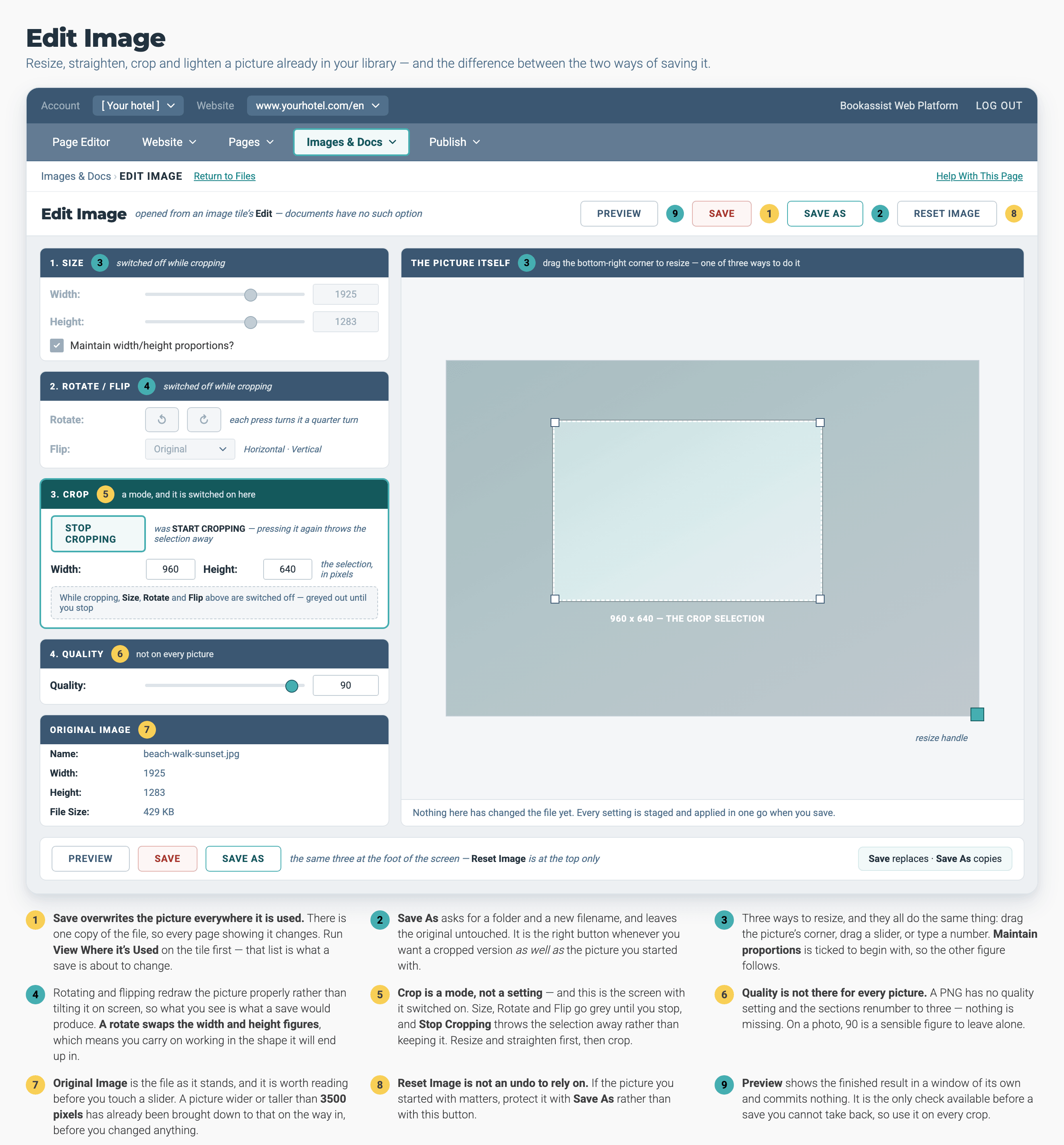
The screen with crop mode switched on, which is why Size and Rotate/Flip are greyed out. Save replaces the original picture everywhere it is used. Save As adds a copy and leaves the original alone.
3. Resize
- Set the Size: Drag the bottom-right corner of the preview, drag the Width or Height slider, or type a number in either box. All three do the same thing.
- Leave Maintain Proportions Ticked: It is already ticked. It changes the other dimension to match, so the picture does not stretch.
4. Rotate or Flip
- Rotate: Each press of an arrow button turns the picture a quarter turn. The Width and Height values swap to match.
- Flip: Choose Horizontal or Vertical to mirror the picture. Original puts it back.
5. Crop
- Click Start Cropping: Then drag a box over the part of the picture you want to keep.
- Fine-Tune: The Width and Height boxes in the Crop block accept typed numbers once you are in crop mode.
- Change Your Mind: Stop Cropping clears the selection and leaves the picture unchanged.
- ⚠️ While you are cropping, Size, Rotate and Flip are switched off. Finish or stop the crop to get them back.
6. Set the Quality
- Drag the Quality Slider: It starts at 90 and moves in steps of 10. Lower numbers make a smaller file and a softer picture.
- If There Is No Quality Block: PNG files do not have one. Nothing is wrong.
7. Preview, Then Save
- Click Preview: A window opens showing the finished result. Nothing is saved yet.
- Choose Your Save:
- Save As
- Asks for a folder and a file name, and adds a new picture. Your original stays exactly as it was.
- Save
- Overwrites the original file. Every page and widget from step 1 changes with it.
Pro-Tips & Troubleshooting
- The picture is smaller than the one I uploaded. Anything over 3500 pixels on its longest side is reduced to 3500 pixels when the editor opens. If you need more detail than that, crop the original file on your own computer.
- The size boxes are greyed out. You are in crop mode. Click Stop Cropping.
- There is no Quality block. The file is a PNG.
- The picture looks squashed. Maintain width/height proportions? was unticked. Reload the editor without saving and start again.
- I need a wide version for one page and the original everywhere else. Use Save As to put a copy in the folder for that page, then choose the copy in the widget.
- The file is heavy and the page is slow. Resize it to the size it is shown at on the page and lower the quality to 80. A hero picture does not need to be 5 MB.
- Reloading the page does not undo a Save. There is one copy of each file, so check step 1 before you press Save, not after.
→ Next: How to Check What Uses an Image — confirm what a Save will change before you press it
Related: How to Upload Images — sizes and formats to aim for on the way in · How to Change the Hero Image — hero dimensions · How to Organise Your Image Folders — where to put a cropped copy