
Read this first: each language version of your hotel's website is a separate website, not a folder inside one. It has its own pages, its own content, its own settings and its own Publish. A change on one does not reach the others automatically.
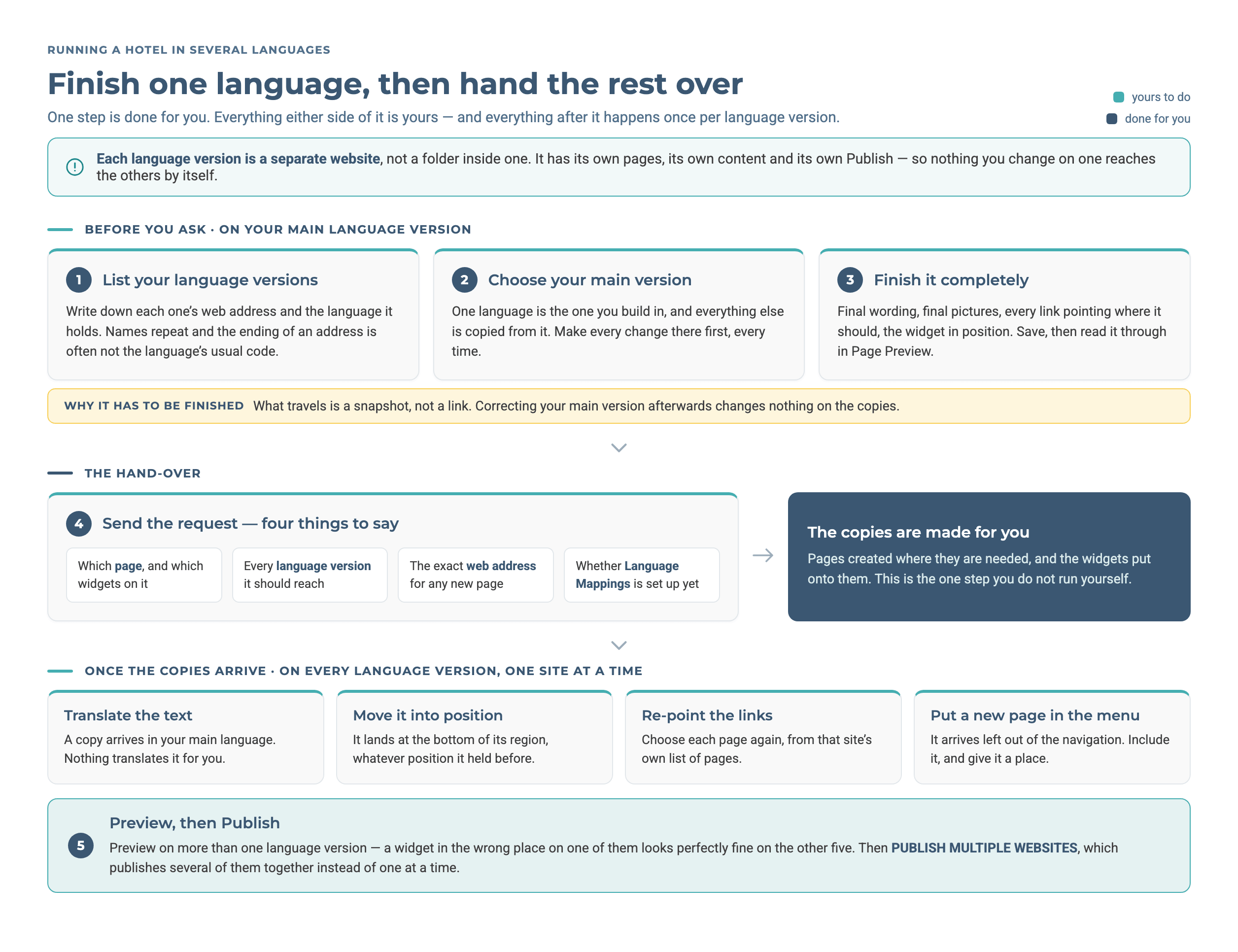
One step is done for you. Everything before and after it is yours, and everything after it is done once per language version.
Step-by-Step Instructions
1. List Your Language Versions
- Open the Dashboard and look under Website CMS. Each language version of your hotel is listed there as its own website. Use that list to move between them.
- You can also switch between them inside the Page Editor, with the Website dropdown at the top left.
- Write Each One Down: Note its web address and the language it holds. Keep the list. You will need it every time you ask for something to be copied.
- ⚠️ Do not rely on a site's name or on the ending of its address. Names repeat across language versions, and some names have nothing to do with the hotel. The ending is often not the usual code for that language. The plain address with no ending is not always the English one.
- Ask If You Are Not Sure Which Language a Site Holds: Email
support@bookassist.com. A guess can put German wording on a French site.
2. Choose One Language as Your Main Version
Choose the language version you build in, and make every change there first, every time. Everything else is copied from it.
Nothing in the platform marks a site as the main one. It is an agreement between the people who work on the site. Without that agreement, changes are made in both directions and the versions drift apart, and nothing on screen shows you where.
3. Finish the Work on the Main Version First
This step decides how much work comes back to you later. The other language versions receive a snapshot, not a link. If you correct the main version afterwards, the copies do not change.
Before you ask for anything, do this on the main version:
- Write the Final Wording: Wording that is still being discussed is copied as it stands.
- Choose the Final Pictures.
- Point Every Link and Button Where It Should Go.
- Put the Widget Where It Belongs on the Page.
- Fill In the Page Title and Description, if this is a new page.
- Save, Then Use Page Preview and read the page through once more.
- ⚠️ Sending it early saves no time. A copy taken from an unfinished widget has to be made again from the start.
4. Send the Request
- Write to
support@bookassist.com. - Name the Page and What Is On It: Say which page on your main version, and which widgets on that page should be copied.
- List Every Language Version It Should Reach, using the web addresses from step 1.
- Say Whether the Page Already Exists on those versions. If it does not, give the exact web address you want on each one. The address is fixed when the page is created and cannot be changed afterwards.
- Ask for Language Mappings to Be Set Up, if that has not been done for your site before. It is set up once for the site. After that, each new page is added to it.
- What it is for: Language Mappings records which page on one language version is the same page on the others. For example, it pairs your Spanish photos page with your English photos page. The pairing tells a search engine to send a Spanish-speaking guest to the Spanish page, not the English one. It does not copy or translate anything, and changing it never changes what is on a page.
- Tell support if anyone has set this up by hand for you before, for example an SEO agency working on the site. There is a second, manual way to do the same job, and the two cannot be used on the same page. See Never do this below.
5. Finish Each Language Version
What arrives is a copy, so four jobs are waiting on each language version. Do them one site at a time.
- Translate the Text: The text arrives in your main language. The platform does not translate it for you.
- Move It Into Position: A copied widget arrives at the bottom of its region, wherever it was on the main version. Hover over its widget label and click Move.
- Re-point the Links: A link that pointed at a page on your main version does not follow the copy to another site, because that site has its own pages. Open the widget and choose the right page from that site's own list.
- Put a New Page Into the Menu: A page created this way is left out of the navigation when it arrives. Include it, and give it a place in Navigation. See How to Manage Page Visibility and Navigation.
- ⚠️ Check the header and the footer too. A logo, a set of social icons, a newsletter sign-up or the language switcher covers every page of one website. With six language versions, you do the job six times.
6. Publish Each Language Version
- Preview First, on more than one language version. A widget can be in the wrong place on one version and look fine on the other five.
- Go to Website → Publish.
- Use PUBLISH MULTIPLE WEBSITES: It publishes several language versions together, so you do not have to open each one and publish it separately.
- ⚠️ Publishing a site publishes everything saved on it, including work someone else has not finished. See How to Publish Your Site.
Pro-Tips & Troubleshooting
- Keep the written list of language versions. It is the most useful habit on a multi-language hotel, because the names you see on screen cannot be trusted.
- A change you made has not appeared on the other languages. This is how the platform works, not a fault. Each language version is a separate website. Make the change on each one, or ask for it to be copied across.
- A copied page looks half-built. This is expected. It arrives with its own site's header, footer and language switcher. The rest stays empty until the widgets are copied onto it.
- The language switcher is missing on one version. It is placed on each website separately, so every language version needs its own. Ask for the missing ones.
- Language Mappings is set up, but search engines still treat the pages as unrelated. The usual cause is translation tags that were added to those pages by hand. They override the Language Mappings entry. Email
support@bookassist.com, name the pages, and ask which of the two is in use on them. - An option this guide names is not on your screen. It is switched off for your account, and nothing on the screen shows that it is missing. Email
support@bookassist.comand name the option you need.
Never do this
- Never identify a language version by its name or by the ending of its address. Use your written list of web addresses and languages.
- Never ask for copies while you are still editing. A copy has no link back to the original, so a later change means editing every copy by hand.
- Never treat a copy as finished when it arrives. Nothing is translated, nothing is in position, and its links do not go where they should until you fix them.
- Never expect a header or footer change to reach the other language versions. It covers every page of one website and no other.
- Never enter anything in Language Mappings if your hotel has only one language. The screen appears on sites that will never need it. It only has a job where two or more language versions exist. On a one-language hotel there is nothing to pair, so leave it alone.
- Never have Language Mappings and hand-added translation tags on the same page. Tags added to a page by hand take precedence, and the Language Mappings entry for that page is ignored. The screen still lets you save the entry, so nothing tells you that it does nothing. Choose one method, and say which when you ask support to set it up.
→ Next: How to Publish Your Site — the publish routine in full, including what else goes live alongside your change
Related: How to Create a New Page — the web address is set once, which is why step 4 asks for it up front · How to Manage Page Visibility and Navigation — the menu on each language version · How to Edit Your Header and Footer — the parts that cover one whole website · How to Manage Users & Permissions — access is granted per website, so six language versions are six grants