
1. Home Popup
Homepage popups appear when a visitor first lands on your site. They are a prime opportunity to:
- Highlight important content: Showcase a hotel service, special event (Valentine's Day, Christmas, etc.), or any relevant news or information.
- Promote special offers: Feature seasonal promotions, limited-time discounts, or attractive package deals.
- Announce events: Promote upcoming events such as holiday celebrations, conferences, or weddings.
How do I setup Home Popup?
Go to Section 3. "Optimise sales” > “Popups" > “Home Popup"
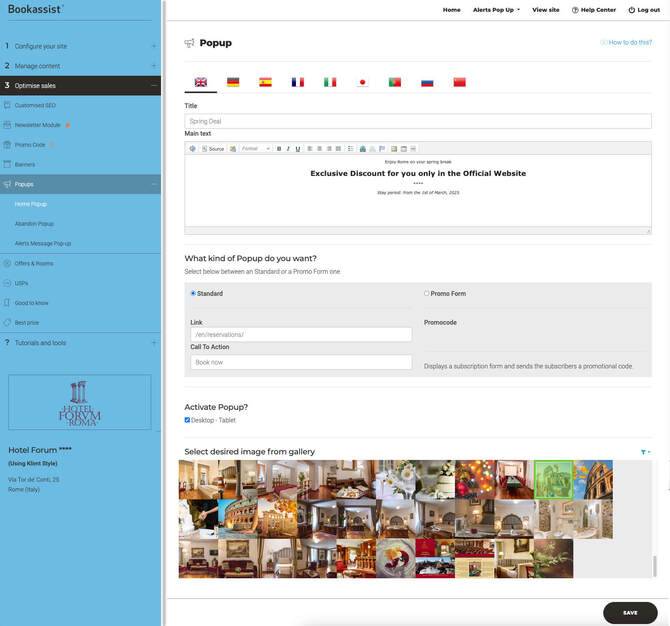 |
Above is screenshot shows the user CMS interface where the content and settings for a standard popup are configured.
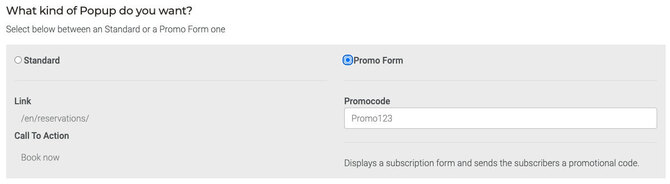
Below we see the options to choose between two types of popup - Standard and Promo Forms.
What kind of Popup do you want?
 |
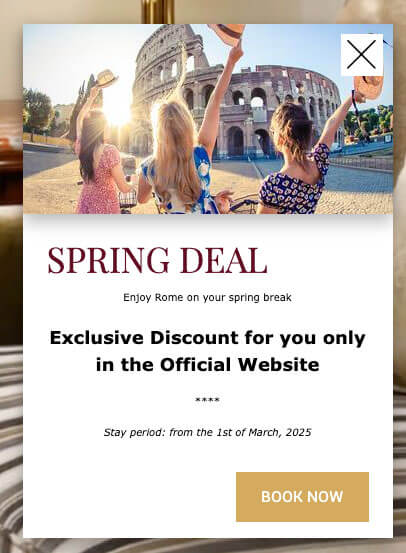
Standard Popup: This image illustrates how a standard popup appears to website visitors, showcasing its design and content display.
 |
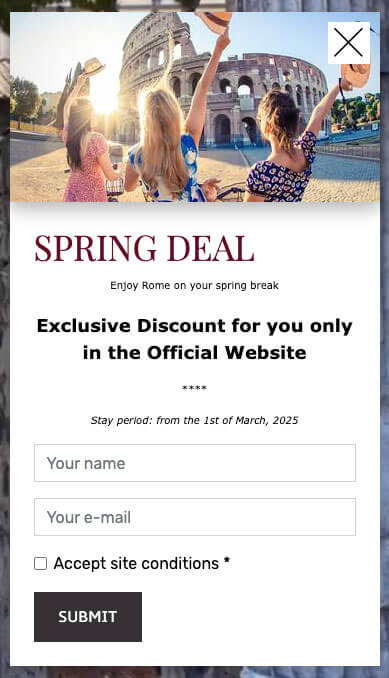
This is an example in the Klimt Style.
Promo Form Popup : Capture visitor email addresses for future marketing campaigns by offering a discount code in exchange. Below screenshot focuses on the form fields used to collect visitor emails.
 |
Email Promo : Upon form submission, an email containing a unique discount code and booking link is automatically sent to the visitor.
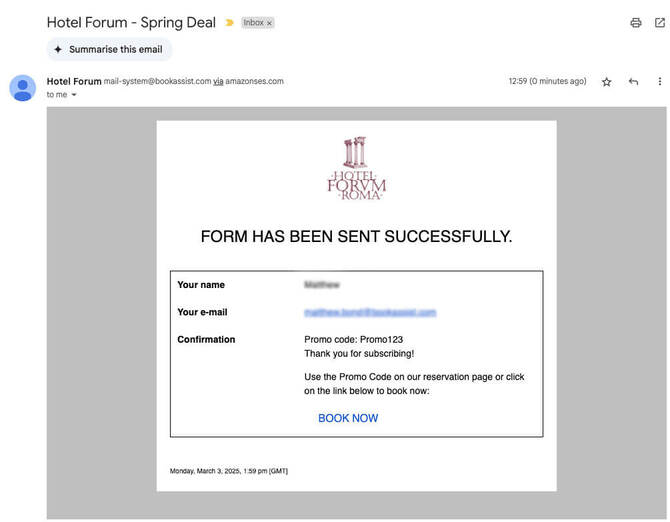 |
This image shows a sample of the email the visitor receives, confirming the automated email process.
Don't forget to activate!
Read more: Welcome pop up will not deactivate?
2. Abandon Popup
The reservation page no long exists on the Smart CMS platform so this feature is no longer applicable.
3. Alerts Message Pop-up
Alert message popups are designed to display important alerts or announcements to your website visitors.
How do I setup Alerts Message Popup?
Go to Section “3. Optimise sales” > Popups > “Alerts Message Popup”.
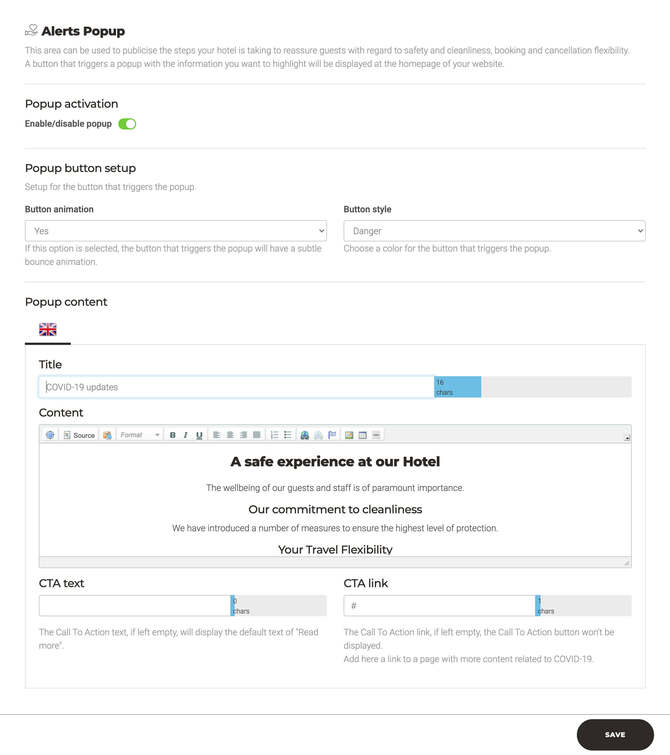 |
This image shows the settings within the CMS.
-
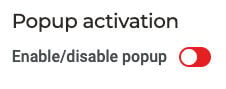
Popup activation - Enables or disables the popup.
-
Popup button setup - This triggers the popup
-
Button animation - If this option is selected, the button will have a subtle bounce animation.
-
Button style - Select a colour for the button from the dropdown
-
-
Popup content (per language)
-
Title - This is the title of the popup, this title is also used for the text that appears on the button to trigger the popup
-
Content - Main content of the popup
-
CTA (call to action)
-
CTA text - Text for the call to action button (“Read more” in the example above)
-
CTA link - Url of the page you want to link the popup to.
-
-
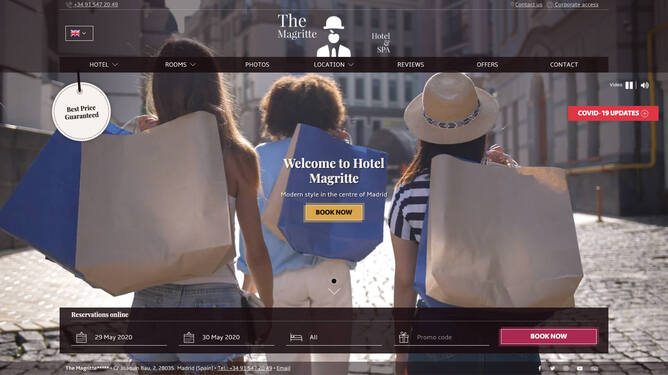
1. Alerts Button
A highlighted button placed over the main carousel on the home page of your website.
This displays as a red button on the top right of the page (COVID-19 updates). You can customise the colour, text and button animation.
 |
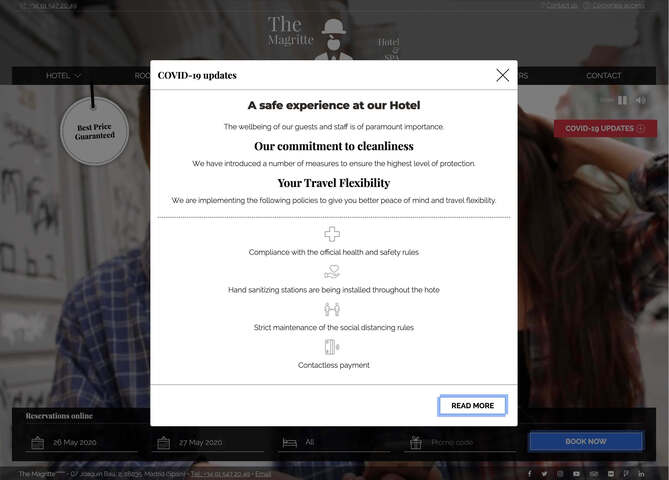
2. Alerts Message Popup
A popup that appears when you click on the button.
This popup displays a message for example COVID-19 policies etc to website visitors. You can also display a call to action button that will point to an inner page on your website where you can add additional information. You can customise both the popup message and the call to action button.
 |
New health and safety font icons are also available from the icons library via the CMS.