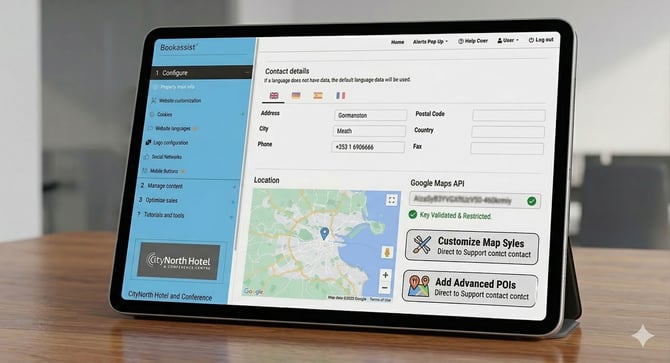
To ensure your hotel’s website displays high-quality interactive maps and local Points of Interest (POIs), please follow these steps to generate and secure your Google Maps API Key.
Step 1: Create Your Project
- Go to the Google Cloud Console.
- Log in using a general hotel email address (e.g., marketing@yourhotel.com) to ensure the property retains long-term access.
- Click the project dropdown at the top and select "New Project." Name it after your property (e.g., Hotel Name - Website Map).
|
|
Step 2: Enable Required Services
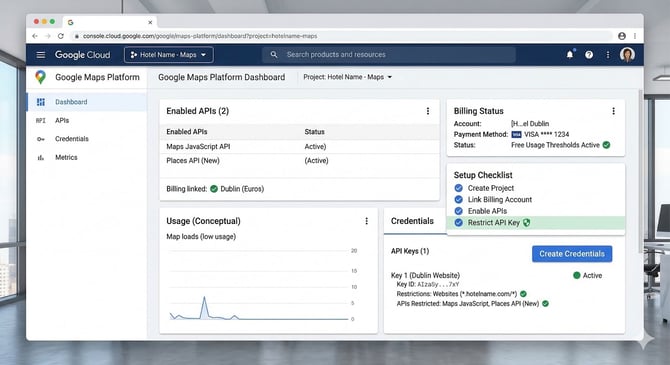
In the APIs & Services > Library, search for and enable the following two services:
- Maps JavaScript API: This allows the map to appear on your website.
- Places API (New): This powers your Points of Interest, such as local attractions and transport links.
Step 3: Set Up Billing
Google requires a linked billing account to remove "Development Only" watermarks.
- Note: Google provides a Free Usage Threshold for these services. Most hotel websites stay within these free limits, meaning you are unlikely to incur charges for standard map views.
- Go to the Billing section in the side menu to link a valid credit card.
Step 4: Secure Your API Key
- Go to APIs & Services > Credentials.
- Click "Create Credentials" and select "API Key."
- Immediately Click "Edit" on the new key to apply restrictions:
- Application Restrictions: Select "Websites" and add your domain (e.g., *.yourhotel.com/*). This prevents other sites from using your key.
- API Restrictions: Set the key to only be usable for the Maps JavaScript API and Places API (New).
Step 5: Finalize & Customize
- Copy your API Key and paste it into the "Google Maps API" field in your CMS.
Go to section 1. “Configure your site” > “Property main info” > “Google Maps API” - For Styling & Enhancements: If you would like to change the colors of your map, hide specific labels, or enhance the look of your Points of Interest, please contact support@bookassist.com. Our team will handle the styling configuration for you.
|
|