
Overview
Bookassist's integration with Nexi Incasso Senza Pensieri allows your property to manage the full payment lifecycle for online reservations — from card pre-authentication at booking time through to charges, refunds, and no-show handling — all from a single dashboard.
Compatible XPay Solutions
Hotels can choose between XPay Easy and XPay Pro.
This can be done by acquiring any of them directly in Nexi or by filling a form and Nexi will contact the hotel.
Note: If you already have a Nexi POS (physical machine), you will need to contact your bank branch to activate XPay.
If you have any doubts we suggest you check their FAQs page or to contact Nexi directly.
Accepted Payments
Nexi offers over 30 payment methods, from international circuits to mobile payments.
You will find the list of accepted payments directly on the Nexi website.
Alternative Payment Methods (APMs)
APMs — such as digital wallets or local payment methods — may be available through your Nexi account. These are activated on the Nexi side and do not require any changes on the Bookassist platform.
Compatibility
In principle, all available APMs should be compatible with the integration. However, exceptions may apply. APMs that operate via a double redirection flow — where Nexi redirects the guest to the payment method's own environment and temporarily loses control of the transaction — cannot be guaranteed to function correctly in all cases.

Should you wish to enable any APM, we strongly advise conducting a test reservation beforehand to confirm that it functions as expected before making it available to guests.
Banks
Here you can check the list of partner banks available.
Bookassist Pricing
What the Integration Enables
Supported Types of Bookings
The integration supports the following types of bookings:
|
Type |
How it Works |
|
Non-Refundable Prepaid |
Full payment is charged at the time of booking. No refund is available once the reservation is confirmed. |
|
Guaranteed with No-Show |
The guest's card is pre-authenticated at the time of booking. The charge is applied later — typically at check-in or in the event of a no-show. |
|
Refundable Prepaid |
Full payment is collected upfront at the time of reservation, regardless of cancellation policy. |
Nexi Dashboard – Available Actions
Once a reservation has been made through the integration, the following actions are available from the Nexi Dashboard:
- Charge no-show – Charge the guest's stored card in the event of a no-show, in line with your defined policy.
- Refund – Process a full or partial refund directly from the dashboard.
- Manual card charge – Charge the stored card on demand, for example upon arrival for guarantee bookings.
Each transaction is clearly identified by payment type, so you can apply the appropriate action based on the rate the guest booked.
Policies Setup
Before the integration is live, two policies must be configured within your Nexi account:
- Structure Policy – The general terms and conditions for your property.
- Economical Policy – The financial and cancellation terms applicable to reservations.
Both policies are presented to the guest at booking time and must be accepted before the reservation can be completed. Please ensure these are reviewed and kept up to date.
Compatible 'Condizioni Struttura' & 'Condizioni Economiche'
Bookassist offers 3 types of booking conditions with Nexi:
Guaranteed reservation with no show (Prenotazione Garantita con no show):
The card is verified but not charged, a penalty may be applied in case of no-show at the property for the No Show amount.
Non-refundable prepaid (Prepagato Non Rimborsabile): The card is charged with the value of the requested advance amount.
Refundable prepaid (Prepagato Rimborsabile): the card is charged with the value of the requested deposit amount and can be refunded according to the terms defined below.

These must be the same ones as set in Bookassist Platform in order there’s a consistency between both platforms so that the booker is also aware and informed during the whole booking process.
We highly recommend checking the current booking conditions texts set in the Booking Platform and adapt them to the Nexi one accordingly. This can be done directly in the Extranet or by sending an email to support@bookassist.com indicating the new texts to be added in each rate type.
Managing Reservations in the Dashboard
To view and manage reservations, log in to your Nexi Dashboard and navigate to the Prenotazioni section. This view provides a full list of reservations along with the available actions for each.
Please note the following when searching for reservations:
- Date filters are active by default. Make sure to adjust these if a reservation is not appearing in the list.
- All available filters are applied simultaneously — check each one if you are having difficulty locating a specific booking.
*****************
Setup Help Guide for Hotels
To begin your payment processing journey, you'll need to establish a direct relationship with Nexi. Please check the guides available from Nexi that will help you to configure your account:
XPay Hub: In the various sections you will find short guides that will lead you step by step through all the features of XPay and its backoffice services.
Step 1: Choose your XPay Option
Go to the Nexi Website and activate XPay Easy or XPay Pro online by following the instructions provided on the web.
If you need more information you can always contact Nexi directly from their website.
Step 2: Configure your Account
Configure your account and customise your XPay settings in the configuration menu. You will find all the steps directly in Nexi by clicking HERE.
You can always contact Nexi customer service for additional help or information.
⚠️ Important Reminder ⚠️
Booking Conditions at hotel and rate level in the Booking Platform should be aligned with the Nexi ones accordingly. Please make sure these are configured correctly.
-
Guaranteed reservation with no show (Prenotazione Garantita con no show): The card is verified but not charged, a penalty may be applied in case of no-show at the property for the No Show amount.
-
Non-refundable prepaid (Prepagato Non Rimborsabile): The card is charged with the value of the requested advance amount.
-
Refundable prepaid (Prepagato Rimborsabile): the card is charged with the value of the requested deposit amount and can be refunded according to the terms defined below.
Step 3: Supplemental Agreement Signment
The Bookassist Administration Department will send you a Supplemental Agreement to be signed, which is required to complete the Merchant Account setup within the Bookassist system.
Once the agreement has been signed and approved by the Administration Department, our L1 Support Team will reach out to the contact specified in the Supplemental Agreement to gather the Nexi credentials needed to proceed with the configuration.
Step 4: Provide Nexi credentials to Bookassist
Once the account is active and configured, and the SA has been signed and approved, Bookassist will require the following information:
- Parametro ALIAS → ‘Merchant ID’ in Bookassist (usually starts with: payment_)
- *Chiave per il calcolo MAC → ‘Secret’ in Bookassist
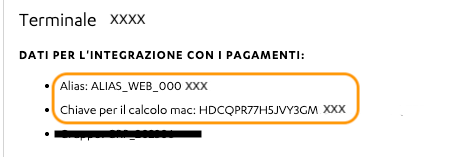
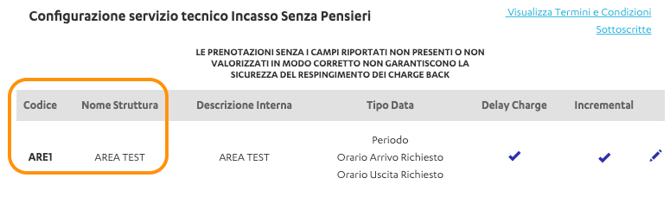
3. Codice → Code assigned to the ‘Struttura’ when configuring booking conditions
4. Nome struttura → Name of the ‘Struttura’ when configuring booking conditions
Example:
- Merchant ID: ALIAS_WEB_1234567
- Secret: 8JYBZ4rgSB3a51S9BO8463X9IIOxdfLST
- Codice: ARE1
- Nome struttura: Area Test
*Chiave MAC or Secret: This key is confidential information. Please share it with caution and in a safe way in order to avoid any phishing.
Step 4: Test Reservation & Final Confirmation
Once the Merchant Account set-up is completed on the Bookassist side, we will contact you so that you can create a quick test reservation to ensure that the entire end-to-end connection has been enabled correctly.