
Learn how to configure Local Tax in BEX and how Local Tax information is displayed to bookers in the Booking Platform.
Table of Contents
1. Do I need to configure Local Tax?
2. How do I configure Local Tax in BEX?
Enable Local Tax
Choose how your Local Tax is calculated
A. Fixed Amount
B. Seasonal Rate
C. Percentage of room price (Local Tax Included in price)
Review and save your settings
Disable Local Tax
3. Frequently Asked Questions
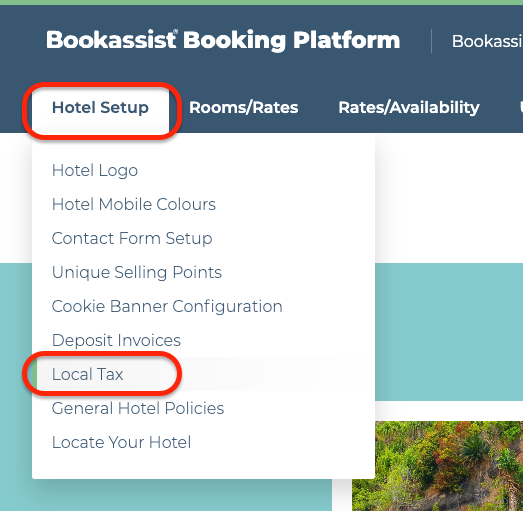
Local Tax can be configured directly in BEX → Hotel Setup → Local Tax.
Your Local Tax configuration determines how the tax is calculated and how it is presented to bookers in the Booking Platform, including whether it is included in the booking price or excluded and paid at the hotel.
How do I know if I need to configure Local Tax?
Local Tax requirements vary depending on the country, city or region where your property is located.
You should configure Local Tax in BEX if your property is required to collect a local accommodation-related tax from guests, such as a tourist tax, city tax or accommodation tax.
The applicable rules, amounts and calculation methods are determined by the relevant local authorities and can vary by destination.
If you are unsure whether Local Tax applies to your property or which rules apply, please check with your local tax authority or professional tax adviser.
How do I configure Local Tax in BEX?
1. Enable Local Tax
If Local Tax applies to your property:
- Login in BEX.
- Go to Hotel Setup → Local Tax.
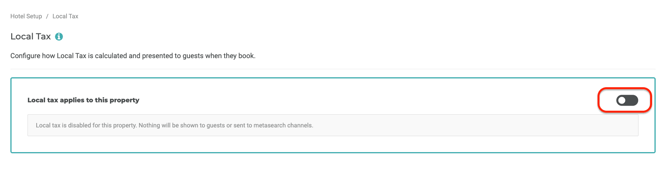
4. Select the Calculation type that matches how Local Tax works at your property.
2. Choose how your Local Tax is calculated
Choose the option that best matches your property's Local Tax requirements:
- Fixed amount
Use this option if your property applies a fixed Local Tax amount per person or per room, per night. - Seasonal rate
Use this option if your property applies different fixed Local Tax amounts depending on the season, for example, one amount during High Season and another during Low Season. - Percentage of room price
Use this option if your Local Tax is calculated as a percentage of the room price, or if Local Tax should be included in the booking price.
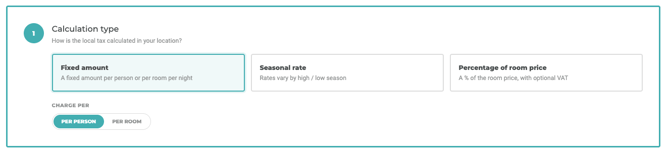
Once you select a calculation type, the relevant settings will appear below.
A. Fixed amount
Use Fixed amount when the Local Tax is a set amount per person or per room, per night.
1. Enter your Local Tax amount
Enter the amount that applies to your property. All amounts are entered in your property's configured currency.
You can configure:
- Amount per person per night — use this if the Local Tax is charged for each guest, for each night of their stay.
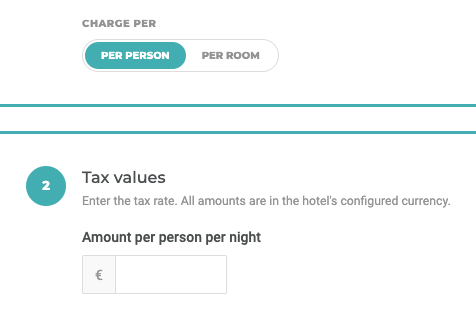
- Amount per room per night — use this if the Local Tax is charged for each room, for each night of the stay.
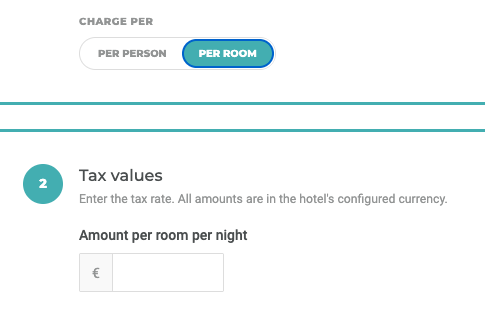
Enter the option that reflects the Local Tax rules for your property.
2. Configure any additional rules
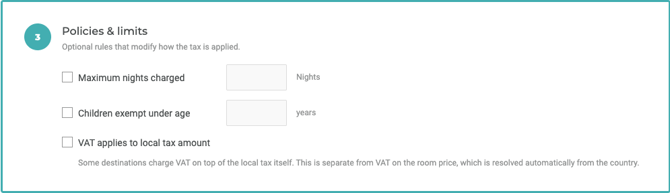
Under Policies & Limits, you can configure additional rules if they apply to your property:
- Maximum nights charged — enter a limit if Local Tax only applies to a certain number of nights. For example, if tax is only due for the first 7 nights, enter 7.
- Children exempt under age — enter an age if children below a certain age do not need to pay Local Tax.
- VAT applies to Local Tax amount — enable this if VAT should also be applied to the Local Tax amount
B. Seasonal rate
Use Seasonal rate when your property has different fixed Local Tax amounts depending on the time of year.
1. Enter your High and Low Season amounts
Enter the Local Tax amounts that apply during:
- High Season
- Low Season
All amounts are entered in your property's configured currency.
2. Select your High Season months
Choose the months that are considered High Season for your property.
You must select at least 1 month and can select a maximum of 11 months.
You do not need to select your Low Season months separately. Any months that are not selected as High Season will automatically be treated as Low Season.
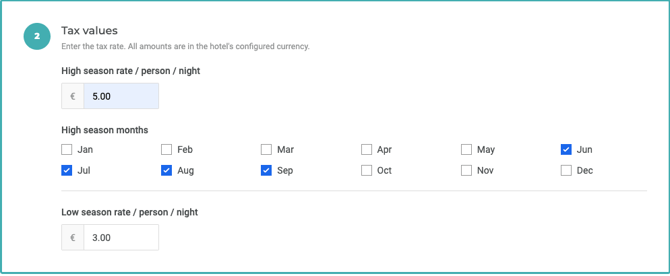
3. Configure any additional rules
Under Policies & Limits, you can configure additional rules if they apply to your property:
- Maximum nights charged — enter a limit if Local Tax only applies to a certain number of nights. For example, if tax is only due for the first 7 nights, enter 7.
- Children exempt under age — enter an age if children below a certain age do not need to pay Local Tax.
- VAT applies to Local Tax amount — enable this if VAT should also be applied to the Local Tax amount
C. Percentage of room price
Use Percentage of room price if your Local Tax is calculated as a percentage of the room price, or if Local Tax should be included in the booking price.
1. Enter your Local Tax %
Enter the Local Tax % that currently applies to your property.
For example, if your Local Tax is 5% of the room price, enter 5%.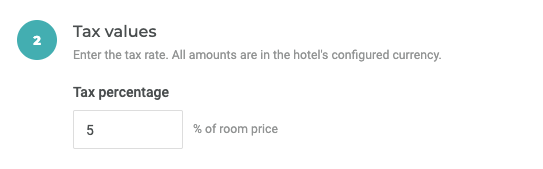
2. Choose whether Local Tax is Included or Excluded
Select how Local Tax should be handled for your property:
- Included — enable “Rate already includes the local tax” if Local Tax is already included in the room price. It will form part of the booking total and will not be shown as an additional amount to pay at the hotel.
- Excluded — leave “Rate already includes the local tax” disabled if Local Tax is not included in the room price. The Local Tax amount will be shown separately to the guest and paid at the hotel.

Choose the option that reflects how your property handles Local Tax.
3. Schedule future Local Tax % changes
If you already know that your Local Tax % will change on a future date, you can schedule the new percentage in advance.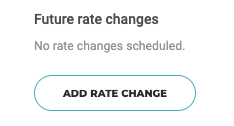
Under Future rate changes:
- Click Add rate change.
- Select the date from which the new percentage should apply.
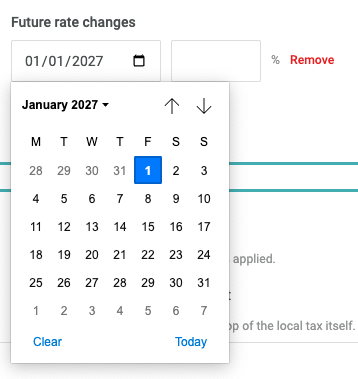
- Enter the new Local Tax %.
- Add any additional future changes if required.
The correct Local Tax % will automatically be applied based on the effective date you have configured.
If you no longer need a scheduled change, click Remove next to it.
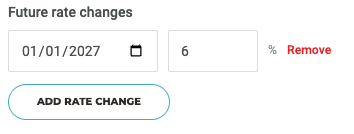
Tip: Add future tax rate changes as soon as they are known. The applicable percentage is determined by the guest’s Arrival date, so bookings made for stays after the effective date will automatically use the new percentage.
Changes to Local Tax do not update existing bookings. Each booking keeps the tax amount that applied when it was made.
4. Configure any additional rules
Under Policies & Limits, you can configure:
- VAT applies to Local Tax amount — enable this if VAT should also be applied to the Local Tax itself.

Some destinations require VAT to be calculated on top of the Local Tax amount. This is separate from the VAT applied to the room price, which is determined automatically based on your property's country.
3. Review and save your settings
Before saving, check that:
- You have selected the correct Calculation type.
- The Local Tax amount or % matches the requirements for your property.
- Your Included/Excluded setting is correct, where applicable.
- Any exemptions, limits or seasonal rules have been configured correctly.
Once everything is correct, click Save.
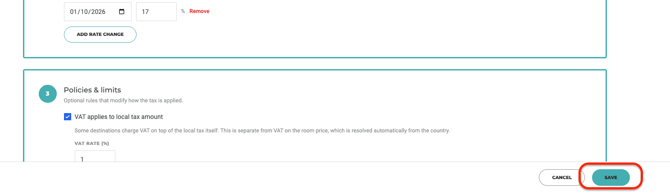
Your Local Tax settings will then be used to calculate and display Local Tax to guests during the booking journey.
4. Disable Local Tax
If Local Tax no longer applies to your property:
- Go to Hotel Setup → Local Tax.
- Turn off the Local Tax toggle.
- A confirmation message will appear. Click Yes, turn off to confirm.
- Click Save to save your changes.
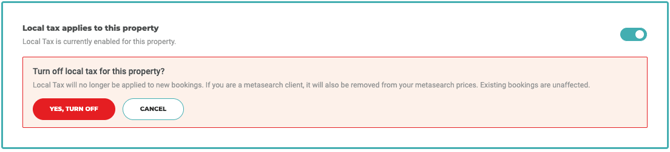
Important: Clicking Yes, turn off confirms that you want to disable Local Tax, but the change is not saved until you click Save.
Once saved, Local Tax will no longer be applied to new bookings. Existing bookings will not be affected.
If your property uses Metasearch, the updated Local Tax configuration will also be reflected in the prices sent to your connected Metasearch channels.
FAQ
How is Local Tax displayed in the Booking Platform?
The Local Tax configuration in BEX is reflected throughout the Booking Platform, giving bookers clear information about whether Local Tax is included in their booking price or needs to be paid separately at the hotel.
Local Tax information may be visible in:
- Availability Calendar — in the price legend
- Group Hotel page
- Group Hotel Map
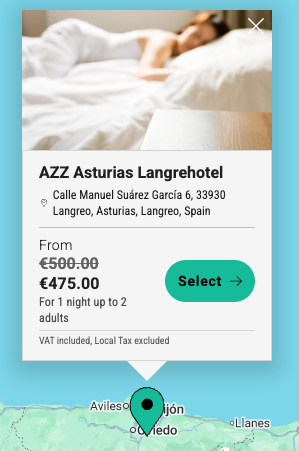
- Room Listing
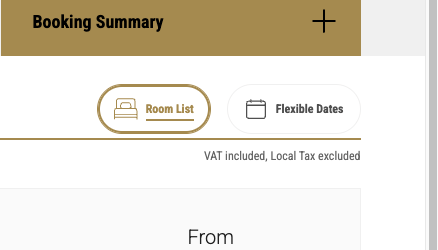
- Room Configuration & Enhance Your Stay
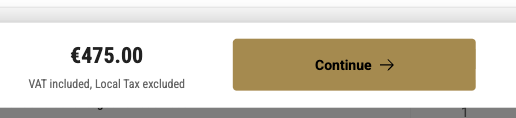
- Cart
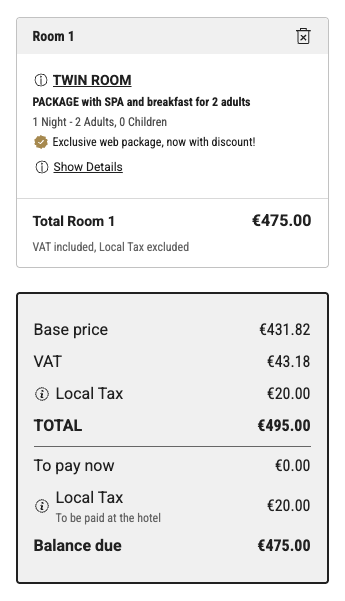
- Booking confirmation
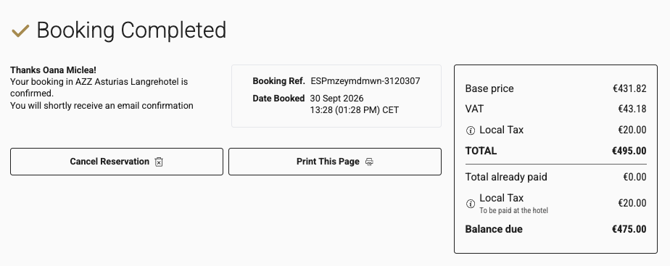
Note: If “Hide prices in the Availability Calendar” is enabled for your property, price-related Local Tax information will not be displayed in the Availability Calendar.
How is Local Tax shown in the Cart?
Local Tax Included
When Local Tax is included, the applicable amount forms part of the booking price and is shown separately in the price breakdown for transparency.
It is not added again as an additional amount to pay at the hotel.
How and when the booking amount is paid depends on your property's payment and deposit configuration.
Local Tax Excluded
When Local Tax is excluded, it is not included in the booking total.
The Local Tax amount is shown separately to the booker and is paid directly at the hotel.
Why do hotels on the Group Page show different Local Tax information?
Local Tax information is shown individually for each hotel.
Depending on the hotel, guests may see that Local Tax is included, excluded, or no Local Tax information where Local Tax does not apply.
This means that hotels within the same group may display different Local Tax information.
What happens if a stay crosses High and Low Season?
The applicable Local Tax should be calculated according to the season that applies to each relevant night of the stay.
When investigating a seasonal Local Tax calculation, always check the stay dates as well as the hotel's configured High Season months.
The hotel still shows ‘City Tax’ in some places. Why?
Room descriptions and cancellation policies are hotel content and are not automatically updated as part of the Local Tax changes. Check these areas in the Booking Engine Extranet (BEX) for existing “City Tax” wording and update it to “Local Tax”.
What happens if the Local Tax rate changes after a guest has booked?
If the future rate change was configured before the booking was made, the Local Tax is calculated using the rate applicable on the guest’s Arrival date.
If the rate is changed after the booking was made, the existing booking is not recalculated. The booking and confirmation retain the Local Tax amount shown at the time of booking.
For Excluded Local Tax, the amount payable at the hotel may therefore differ from the amount originally shown if local tax regulations change before the guest’s stay.
For Included Local Tax, any difference would need to be handled by the hotel according to its applicable local requirements.