
Read this first: the platform and your website are two different screens. You sign in to the Dashboard, then choose a website from the sidebar. Every website in that list is edited and published on its own, and each language version counts as a separate website.
Step-by-Step Instructions
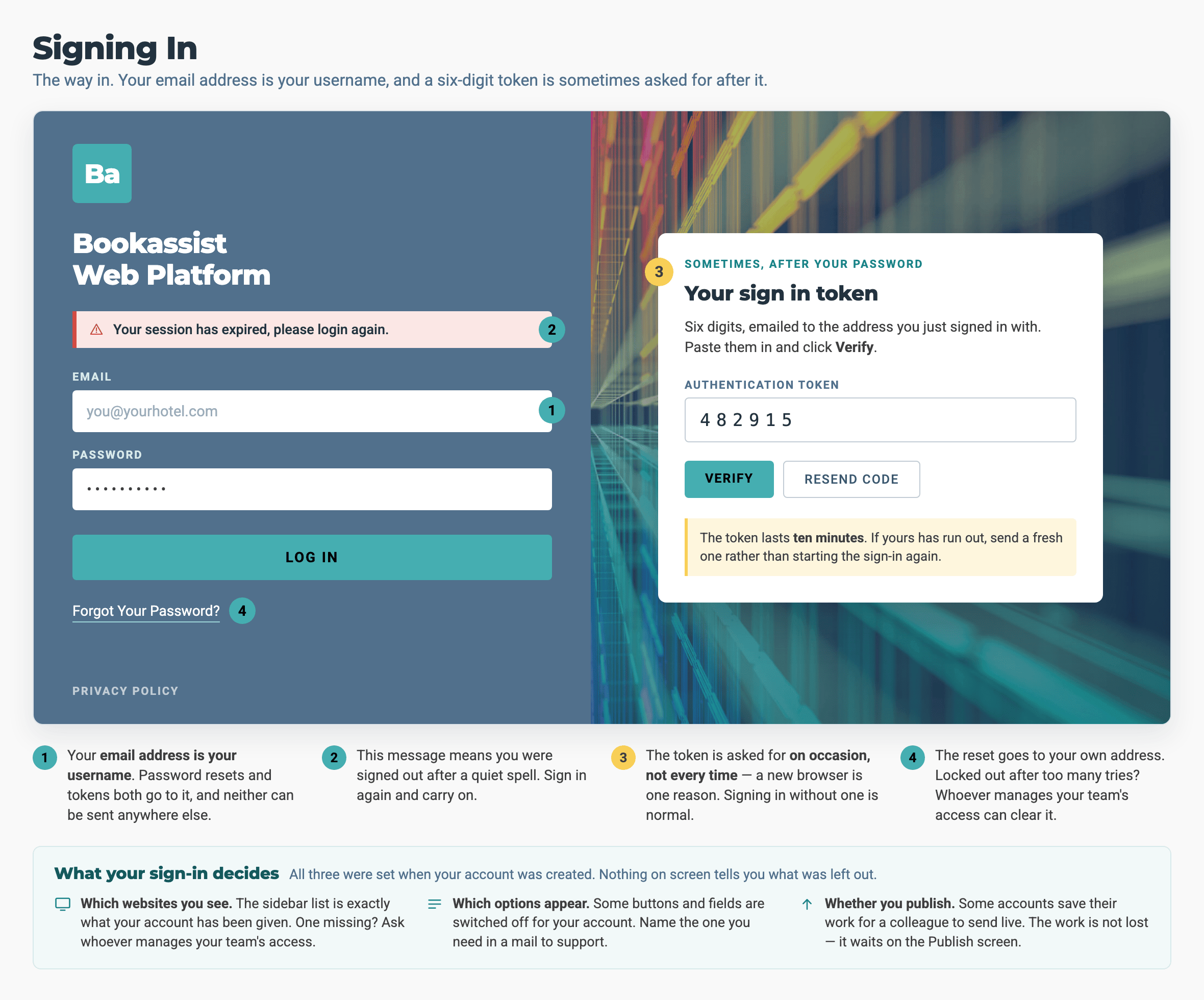
One screen, two steps: your email and password, then a sign in token when the platform asks for one. What you can open after that was decided when your account was created, and the screens do not show what has been left out.
1. Sign In
- Open the sign-in screen:
- Enter Your Email and Password: your email address is your username. Your sign-in details were emailed to you when your account was created.
- Click Log In.
- Result: the Dashboard opens. Recent activity on your account is in the middle, and the menu you need is the sidebar on the left.
- "Your session has expired, please login again" means the platform signed you out because you had not used it for a while. Sign in again and carry on.
2. Enter Your Sign In Token, When You Are Asked For One
The platform sometimes asks for a sign in token after your password. It does not ask every time, so signing in without one is normal. The token is a six-digit number, emailed to the address you signed in with.
- Open the Email: the subject line is Bookassist Web Platform Sign in Token, and the six digits are in the message.
- Paste the Token into the authentication token textbox on the sign-in screen.
- Click Verify.
- ⚠️ The token lasts ten minutes. If yours has run out, click the button beside Verify to get a new one. You do not need to start signing in again.
- Result: the Dashboard opens as normal.
3. Open Your Website
- Click Website CMS in the left sidebar. The panel expands and lists your websites under PRIMARY WEBSITES. Nothing opens yet.
- Click Your Domain in that list.
- Result: the Page Editor opens for that website, showing the home page with each widget's green widget label in place.
- ⚠️ Each language version is a separate website. A hotel with an English, a French and a German site sees three websites here. Editing or publishing one changes nothing on the other two.
4. Find Your Way Around
The top bar has five items. Together they cover your day-to-day work.
| Item | What is in it |
|---|---|
| Page Editor | Where you build a page. You place widgets into its regions and edit their content. This is the screen you arrived on, and clicking this item brings you back to it from any other menu |
| Website | Site-wide settings, forms, audiences, search and the record of who changed what |
| Pages | Every page on the site. Create a page, edit one, and set where it appears in the navigation |
| Images & Docs | Upload and organise your images, PDFs and other files |
| Publish | Send your staged changes to the live site |
Everything you edit is staged until you publish it. Saving a widget, a page or an image changes only the version you are working on. The live site changes when you click Publish.
5. Change Your Password, or Sign Out
- Click Log Out to end your session. It is at the top right of both the Dashboard and the Page Editor, so you can sign out from wherever you are.
- To change your password, go back to the Dashboard, hover My Account and click Update Password.
- Forgotten your password? Use Forgot Your Password? on the sign-in screen. The reset email goes to your own address. If you are locked out after too many attempts, the person who manages users on your account can unlock it for you.
- The Dashboard's shortcut buttons do not ask which website you want. Page Editor, Images & Docs and Publish on the Dashboard always open your main website. If your hotel has more than one language site, use the sidebar list instead, so you know which website you are about to change.
- A website you expected is not in the list. The list shows only the websites your account has been given. Ask the person who manages your team's access, or email support@bookassist.com with the address of the website you need.
- The screen opens, but the button this guide names is not on it. That option is switched off for your account. Website → Settings, Pages, the Page Editor and Publish can each have options switched off, and nothing on the screen shows that they are missing. Email support@bookassist.com and name the option you need.
- You edited a page and the live site never changed. Some accounts can save changes but cannot publish them. Your work is not lost. It is staged and waiting, so ask the person who publishes for your hotel to publish it.
- A colleague sees a field or a widget you do not. Some fields and widgets are switched on for each website rather than for each person, so you can have different options on two websites. Contact your account manager and name the field or widget.
- No Users option under My Account. Managing your team's access is a separate setting, and it is switched off for your account. Ask the person who set your account up.
- Keep access to the inbox your account uses. Password resets and sign in tokens both go there, and they cannot be sent to another address.
→ Next: How to Edit an Existing Page — the first job to do once the Page Editor is open